Windows 11 Games Crashing After August 2026 Update
The August 2026 Windows 11 update KB5121003 makes some games crash on PCs with RGB hardware. Here is who is affected and Microsoft's official workaround.
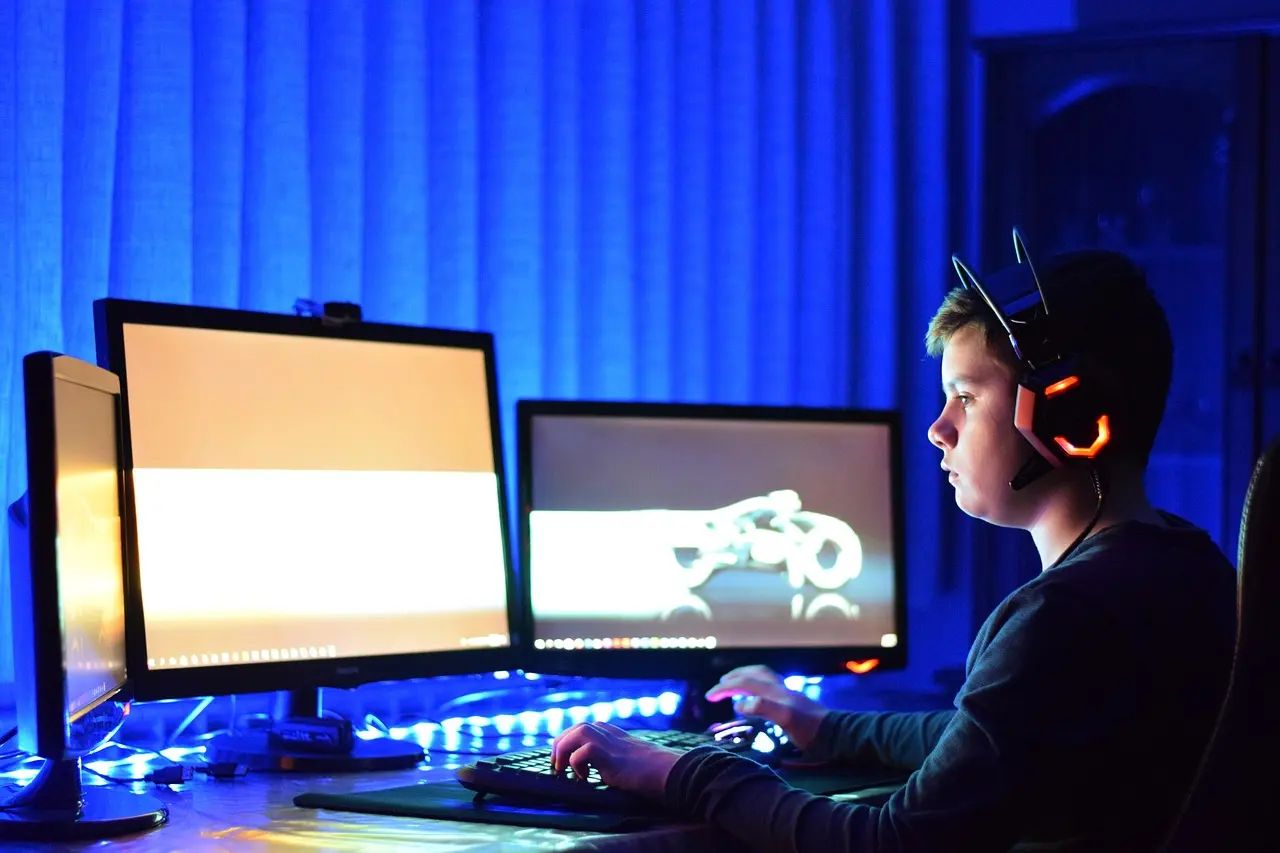
An August 2026 Windows 11 update can make certain games crash, freeze, or throw an EXCEPTION_ACCESS_VIOLATION error on PCs that have RGB lighting hardware. Microsoft has confirmed the problem, and while a permanent fix is still being worked out, it published a workaround: temporarily disable a low-level driver named inpoutx64 that RGB software installs. This guide explains what is happening, how to tell whether it affects you, and how to apply the fix without breaking anything else. Microsoft has tied the reports to the August 11, 2026 update KB5121003 and to a short list of titles including ARC Raiders, THE FINALS, and MARVEL Tokon: Fighting Souls.
What is going wrong
The update in question is KB5121003, released on August 11, 2026. It landed as OS Build 26100.9168 on Windows 11 version 24H2 and OS Build 26200.9168 on version 25H2. Microsoft opened the known issue on August 19 and, as of late August 2026, lists it as under investigation on its Windows 11 release health dashboard. The same issue is tracked on the version 25H2 release health page.
The trigger is a driver named inpoutx64, or a component with a similar file name. It is a low-level driver that gives software direct access to hardware ports, and it ships with a lot of RGB lighting and hardware-monitoring utilities. On machines where that driver is present, launching one of a handful of games sets off the crash. Microsoft has said it is still working to understand exactly how these RGB components and the affected games collide, so today’s guidance is about prevention rather than a code-level repair.
In plain terms: this is not a problem with the games themselves, and it is not something wrong with your graphics card. It is an interaction between the August security update and the driver your RGB gear installed. RGB gear here means anything with controllable lighting: keyboards, mice, fans, RAM, coolers, motherboards, and some graphics cards, along with the app that controls them.
Which versions and games are affected
Everything in the table below comes directly from Microsoft’s known-issue notice. If a detail is not listed here, Microsoft has not confirmed it, so treat anything beyond this as unverified.
| Detail | What Microsoft confirmed |
|---|---|
| Originating update | KB5121003, released August 11, 2026 |
| OS builds | 26100.9168 (24H2), 26200.9168 (25H2) |
| Windows versions affected | Windows 11 version 24H2 and version 25H2 (client only; no server) |
| What triggers it | An inpoutx64-style driver from RGB or monitoring software, plus launching an affected game |
| Games named in reports | ARC Raiders, MARVEL Tokon: Fighting Souls, and THE FINALS |
| Symptoms | The game becomes unresponsive, closes on its own, shows EXCEPTION_ACCESS_VIOLATION, or the PC restarts without warning |
| Status (late August 2026) | Under investigation; workaround available |
The three named games are the ones showing up in reports, but Microsoft describes the cause as the driver plus “certain games,” so other titles could behave the same way. The common thread is the RGB driver, not any single game.
How to tell whether this is your problem
You are a likely candidate for this specific bug only if all three of these are true:
- You are running Windows 11 version 24H2 or 25H2 with the August 2026 update installed.
- You have RGB hardware and its control software on the PC.
- The crash happens when you launch a game, especially one of the three named above.
To check your build, open Settings > System > About, or press the Windows key, type winver, and press Enter. Compare what you see against the build numbers in the table. If your build is older than 26100.9168, you do not have this update yet and the crash is coming from somewhere else.
If you do not own any RGB peripherals or components and do not play those games, this almost certainly is not your issue. A game that crashes for other reasons is a different troubleshooting path, and our guide on why a Windows PC runs slow or unstable walks through the usual causes. And if the August update itself refuses to install rather than causing crashes, that is a separate problem that often comes down to a full disk. Our guide on how to free up space on Windows 11 covers that.
The official workaround
Microsoft’s workaround is to disable the inpoutx64 driver through the Windows registry. Editing the registry carries real risk, so back it up first. Microsoft links to its own guide for backing up and restoring the registry from the known-issue page, and you should not skip that step.
- Back up the registry before you change anything, so you can undo the edit if needed.
- Open the Start menu, type
regedit, and open the Registry Editor. - Navigate to
HKEY_LOCAL_MACHINE\SYSTEM\CurrentControlSet\Services\inpoutx64. - On the right, double-click the value named
Start, enter4in the Value data field, and click OK. - Close the editor and restart your computer.
Setting Start to 4 tells Windows not to load that driver at boot, which removes the trigger. There is a cost: with the driver off, your RGB lighting may stop responding, or the software that controls it may misbehave. That is a deliberate trade of lighting effects for stable games. When Microsoft ships a proper fix, you can undo the change by restoring the registry or setting Start back to its original value, then restart again.
The table below lays out your realistic options.
| Option | What it does | Trade-off |
|---|---|---|
Disable the inpoutx64 driver (Microsoft’s workaround) | Stops the crashes by turning off the driver the bug depends on | RGB lighting or its control app may stop working until you undo it |
| Skip the affected games for now | Avoids the trigger without touching the registry | You cannot play the named titles in the meantime |
| Wait for Microsoft’s fix | Nothing changes on your end | Crashes continue until a patch ships |
| Report it in Feedback Hub | Feeds Microsoft’s investigation | Does not fix your own PC on its own |
To file a report, press the Windows key and F together to open Feedback Hub, which Microsoft specifically asks affected users to do.
Should you uninstall the update instead?
It is tempting to remove KB5121003 and move on, but that is the weaker choice. This is a security update, so removing it leaves your PC exposed to the flaws it patched. The registry workaround is narrower and safer: it disables one driver instead of rolling back protection for the whole system. Staying current matters for another reason too, since Windows 11 version 24H2 Home and Pro reach their end of updates on October 13, 2026, after which they stop receiving fixes and security patches. If you are weighing where your PC stands on the update timeline, our explainer on what to do about Windows 10 end of support puts the current lifecycle in context.
If you applied the workaround, leave a note for yourself to reverse it once Microsoft marks the issue resolved on its release health dashboard. Until then, disabling the inpoutx64 driver is the supported way to keep playing while keeping the August security fixes in place.
Common questions
Which games are affected by the KB5121003 crash?
Microsoft named ARC Raiders, MARVEL Tokon: Fighting Souls, and THE FINALS, but it describes the cause as the RGB driver plus “certain games,” so other titles can crash the same way.
How do I undo the inpoutx64 registry workaround later?
Return to HKEY_LOCAL_MACHINE\SYSTEM\CurrentControlSet\Services\inpoutx64, set the Start value back to its original number (or restore the registry backup you made first), and restart the PC.
Should I uninstall KB5121003 to stop the crashes?
Better not to. It is a security update that closes more than 400 vulnerabilities, so disabling the single inpoutx64 driver is the narrower and safer fix than rolling back the whole patch.
Which Windows 11 builds have this game-crash issue?
OS Build 26100.9168 on version 24H2 and 26200.9168 on version 25H2. Microsoft lists it as client-only, with no Windows Server release affected.
Sources: Windows 11, version 24H2 known issues and notifications and Windows 11, version 25H2 known issues and notifications, Microsoft Learn.