How to back up your files properly
A backup is a copy that survives whatever destroys the original. What the 3-2-1 rule protects against, why sync is not backup, and how to test a restore.
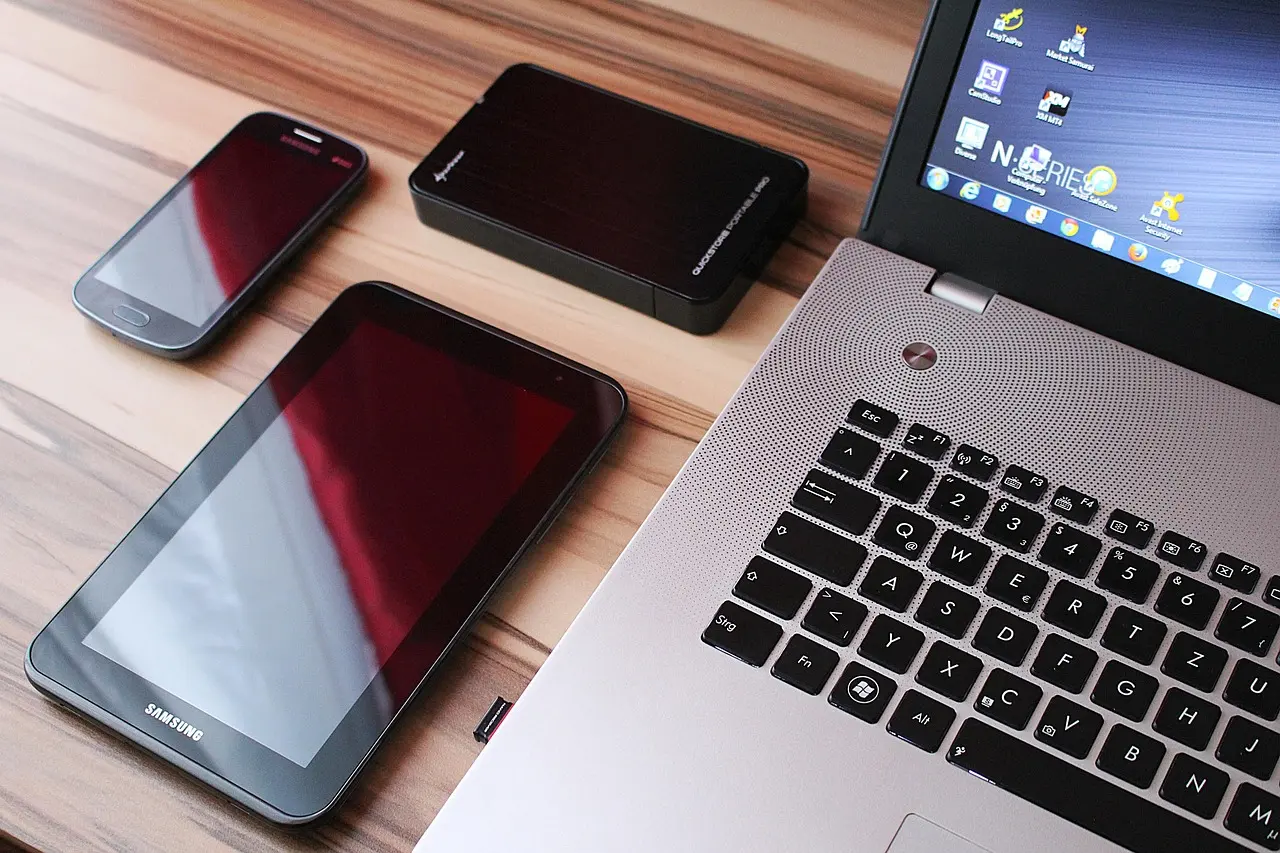
A backup is a second copy of your data that survives the event which destroyed the first one. If a single accident, theft, mistake, or piece of malware can take out both copies at once, you do not have a backup, you have one copy stored in two places. This article covers what separates the two, why Google Drive and Dropbox do not qualify, what each number in the 3-2-1 rule is defending against, and how to run a restore test that proves something. The failure most people picture is a dead hard drive, but the one that actually takes out both copies at once is usually ransomware or an accidental delete that a sync service then copies to every device within seconds.
What makes a copy a backup
The defining property is independence, not location. The useful question is never “where is my other copy,” it is “what single event could destroy both?” Almost every way people lose data reduces to a shared fate:
- Same disk. A second folder, a partition, or a snapshot living on the drive it protects dies with that drive.
- Same machine. Anything the operating system can write to, a program running as you can overwrite or delete.
- Same building. Fire, flood, and burglary have a radius, and both copies sit inside it.
- Same account. A laptop, a phone, and a cloud archive behind one provider login are one copy wearing three hats. Suspension, hijack, or a failed payment removes all three at once.
- Same moment in time. Two copies that are always identical means a corruption written at 14:02 exists in both by 14:03.
Count copies by independent failure mode, not by device. That reframing does more work than any product choice.
Sync services are replication, not backup
Google Drive, Dropbox, iCloud Drive, and OneDrive have one job: make the remote state match the local state. They are working correctly when they carry your deletion upstream.
Google’s own documentation says it plainly. Files moved to Trash are “deleted forever after 30 days,” and: “If you mirror or stream files between Google Drive and your computer, any files you put in the trash are put in the trash everywhere.”
The same pipe carries damage of every kind. If something encrypts forty thousand files on your disk, the sync client uploads forty thousand encrypted files over the good ones and reports success. MITRE ATT&CK’s T1490 “Inhibit System Recovery” technique lists “cloud storage folders syncing to backup services,” cloud versioning, and backup policies as explicit targets. The UK’s NCSC has directly observed ransomware that encrypted not only on-disk data but “the connected USB and network storage drives holding data backups,” along with connected cloud storage.
Sync is genuinely useful: it moves files between your devices and survives your laptop being stolen. It does not survive you, or software acting as you, destroying the contents. If you are already there, data recovery software is a salvage operation, not a plan.
Version history is a short window, not a time machine
Version history is the feature that makes sync feel like backup. Its limits are the whole story, and the providers document them.
| Service | How far back the documentation says you can go |
|---|---|
| Google Drive trash | Files in Trash are deleted forever after 30 days |
| Google Drive file versions | A version may be permanently deleted after 30 days, or once there are 100 newer versions, unless you mark it “Keep forever” |
| Dropbox Basic, Plus, Family | 30 days of version history |
| Dropbox Professional, Essentials, Standard, Business | 180 days |
| Dropbox Business Plus, Advanced, Enterprise | 365 days |
| OneDrive recycle bin, personal account | Items are deleted 30 days after they are put there |
| OneDrive recycle bin, work or school account | 93 days, unless an administrator changed the setting |
| iCloud Drive | 30 days in Recently Deleted; files you permanently remove cannot be recovered |
| Backblaze Computer Backup | 30 days of version history by default, with 1-year and forever options |
Two details catch people out. Dropbox states you cannot view or restore previous versions of files and folders that have been permanently deleted, so version history does not rescue anything you emptied from the trash. And Backblaze documents that files or drives not present for longer than 30 days do not appear in your current backup view, which quietly drops the archive drive on your shelf unless you enable extended version history.
The deeper problem is that the retention clock starts when the damage happens, not when you notice. A photo library that silently stopped importing, an archive that corrupted, a drive that failed while you were away: those are the failures with long discovery times. Ask how long something could be broken before you would notice, then require your window to be longer than that number.
One protection worth naming precisely: Microsoft’s “Restore your OneDrive” can undo all the actions that occurred on any files and folders within the last 30 days, covering files deleted, overwritten, corrupted, or infected by malware, and it pre-fills a suggested date if you are restoring after automatic ransomware detection. Microsoft states it requires a Microsoft 365 subscription. Free accounts do not have it.
The 3-2-1 rule and what each number defends against
The phrase was coined by photographer Peter Krogh in the mid-2000s while he was writing the first edition of The DAM Book. He does not claim to have invented the practice, only to have distilled it into something people could remember. The NCSC states it as “at least 3 copies, on 2 devices, and 1 offsite backup.”
Three copies
The live data plus two backups. Three exists because two copies fail together more easily than people expect: you discover the backup is broken at the same moment you need it, and then you are at zero. The third copy is your second attempt.
Two different media
Read literally this sounds like a leftover from tape-and-disk shops. The durable meaning is two uncorrelated failure modes. Two drives bought the same day from the same batch, in the same enclosure on the same power supply, share a firmware bug, a manufacturing defect, and a surge. That is one failure mode with two enclosures. Different vendor, different technology, different building: those decorrelate. It is also why “a second folder on the same drive” fails the test and “external drive plus a cloud provider” passes it.
Drives fail at a measurable rate. Backblaze’s Drive Stats reported an annualized failure rate of 1.24% for Q1 2026, from 1,030 failures across 30,203,180 drive days. Those are datacenter conditions: constant power, controlled temperature, careful handling. Read it as evidence that drives fail on a schedule nobody controls, not as a prediction about the drive in your bag.
One offsite
Fire, flood, burglary, and a lost building all have a physical radius, and one copy has to sit outside it. Offsite costs retrieval time: pulling several terabytes back over consumer broadband is a multi-day download, which is why the local copy exists at all. Local for speed, offsite for survival. Veeam extends the rule to 3-2-1-1-0, where the extra 1 is one immutable or air-gapped copy and the 0 is zero recovery errors, verified through automated checks.
The drive you leave plugged in
An always-connected external drive shares fate with the machine both ways. Physically it is on the same desk, in the same surge, flood, and burglary. Logically, it is a volume the operating system can write to, which makes it a volume malware running under your account can write to.
MITRE’s T1490 documents the commands used to destroy local recovery data, including vssadmin.exe delete shadows /all /quiet, wbadmin.exe delete catalog -quiet, wmic shadowcopy delete, and diskshadow delete shadows all. They exist because an attacker’s early move is to remove the thing you would restore from.
That settles what to do with snapshots. Apple documents that Time Machine local snapshots are “created hourly, stored on the same disk as the original files, and saved for up to 24 hours or until space is needed on the disk,” on APFS volumes. Windows volume shadow copies live on the volume they protect. Both are good for undoing a mistake you made this morning. Neither counts as one of your three copies. Time Machine’s real backups go to a separate disk and keep hourly backups for the past 24 hours, daily for the past month, and weekly for previous months.
Offline means one thing: no write path from a compromised machine. The physical way is an air gap, a drive you unplug and put in a drawer. NCSC defines an offline or “cold” backup as one whose purpose is to remain unaffected should any incident impact your live environment, and notes cloud storage can play that role only if configured to deny connection requests while the storage is not in use.
The logical way is a permission boundary the endpoint does not hold: a destination the client can add new data to but cannot delete or overwrite, enforced server-side. AWS S3 Object Lock is the industrial version. In compliance mode a protected object version cannot be overwritten or deleted by any user, including the root user of the account, the retention mode cannot be changed, and the period cannot be shortened. It works only in buckets with S3 Versioning enabled. If your data lives in that ecosystem, the same reasoning shapes an Amazon S3 backup setup; if what you are protecting is a website, hardening the platform is its own job, covered in this WordPress security checklist.
Nobody at home needs compliance mode. The household version of immutability is a drive in a drawer that nothing can reach over a cable.
What the backup does not cover
A job that runs perfectly on “Documents” still loses everything that never lived there. Before choosing a tool, write down what has to survive:
- Photos and videos that exist only on a phone
- The password vault, and the 2FA recovery seeds
- Email that exists only inside a webmail account
- Browser bookmarks and saved logins
- License keys and installers you cannot re-download
- Chat history
- Code on local branches that was never pushed
- Anything on a second internal drive the default job never touched
Credentials deserve their own line. An encrypted backup whose passphrase lives only in the password manager on the dead laptop is not a backup. A cloud archive behind an account whose second factor was bound to the stolen phone is not a backup. The recovery path has to be independent of the thing you are recovering from, which means something physical and offline: a printed key, a recovery code in a safe, a second hardware token.
On Windows, File History asks you to connect an external drive or a network location and backs up your libraries: Documents, Pictures, Videos, Music, and any custom libraries. The Windows Backup app takes a different route, sending personal folders to OneDrive, bounded by the quota of the signed-in Microsoft account, which is 5 GB free and 1 TB with Microsoft 365 Personal. Knowing which one you turned on tells you what is covered.
Testing the restore, the step everyone skips
At-Bay, a cyber insurer, analyzed 186 ransomware claims from small and mid-sized policyholders across 50,000 policy years between 2019 and 2023, and found that 31% of those businesses failed to restore their data from backups during the attack. That is claims data, not a self-reported survey. They had backups. The backups did not come back.
Verification has three levels, and they get conflated constantly.
- The job reported success. This proves the software did not throw an error. Nothing more.
- A structural check. The tool validates its own metadata and repository consistency. Restic’s documentation is explicit that by default the
checkcommand does not verify that the actual pack files on disk in the repository are unmodified, because doing so requires reading a copy of every pack file. A repository can pass this check while holding corrupted bytes. - Reading the data back. Restic’s
check --read-datadoes this, and so does an actual restore. Only this level answers the question you care about.
The third level matters because conventional filesystems return corrupted data without complaint: they have no way to know it changed. OpenZFS documents end-to-end checksums that detect corruption on read, with periodic scrubs to catch latent media degradation and bit rot, and repair where redundancy exists. A backup nothing ever reads back is a backup whose corruption is invisible, and a corrupted file copies faithfully into all three copies.
Treat the test as a drill. Restore to somewhere other than the original location, then open the files. Ten minutes surfaces what a status screen never will: the passphrase nobody wrote down, the archive format needing software you no longer own, the job that has been skipping the external drive for eight months, the account whose second factor is bound to a phone you replaced, the 400 GB restore that will not fit on a 256 GB laptop.
While you are there, size the restore. How long until you are working again, and how much work are you willing to lose? A daily schedule means up to a day of lost work, and a full-machine rebuild is a different exercise from pulling back one file. NIST’s Cybersecurity Framework 2.0 states the requirement in one subcategory, PR.DS-11: backups of data are created, protected, maintained, and tested. NIST SP 800-53 Rev. 5 control CP-9 adds enhancements for testing reliability and integrity, test restoration using sampling, separate storage for critical information, and cryptographic protection. Neither uses the phrase 3-2-1. Testing is the part both insist on.
Start here this week
- List what must survive. Use the list above, including the password vault and the recovery codes. This step decides everything after it.
- Add one independent copy. An external drive you unplug after each run, or a service under a different login from your sync provider. The goal is a copy with no write path from your daily machine.
- Automate it, then arrange to notice. Manual backups stop happening when life gets chaotic, and automated ones stop silently, which is worse. Put a recurring reminder in your calendar to open the tool and read the date of the last completed run.
- Restore something today. Pick a folder, restore it somewhere new, open the files. Repeat in six months, and after any change to your machine, accounts, or tooling.
If you do only one of these, do the fourth. A backup you have never restored from is a hypothesis.
Common questions
How often should I back up my files?
Match the schedule to how much work you are willing to redo. A daily automated job means losing at most a day of changes, while files you edit constantly are better served by continuous or hourly versioning. The key is that it runs on its own, because manual backups quietly stop happening.
Does an external hard drive count as a real backup?
Only when it is independent of the machine it protects. A drive you unplug and store elsewhere is a genuine second copy; one left permanently connected shares the same power surge, theft, flood, and any malware that can write to it, so it can fail at the same moment your main disk does.
Is Google Drive or Dropbox a backup?
No, those are sync services. Their job is to make the cloud match your device, so a deletion or a file that gets corrupted or encrypted is carried upstream over the good version. Version history buys you a limited window, often 30 days on consumer plans, but it does not replace an independent, offline copy.
How long do external hard drives last?
There is no fixed lifespan. Backblaze’s large-scale data shows datacenter failure rates of only a percent or two per year, but any single drive can fail without warning at any age, which is the whole reason to keep more than one copy rather than trusting one disk.