How to Fix a Printer Showing Offline in Windows 11/10
A printer stuck offline is usually a stale connection, a manual offline flag, or a jammed Print Spooler. Fix each cause step by step, with a symptom-cause table.
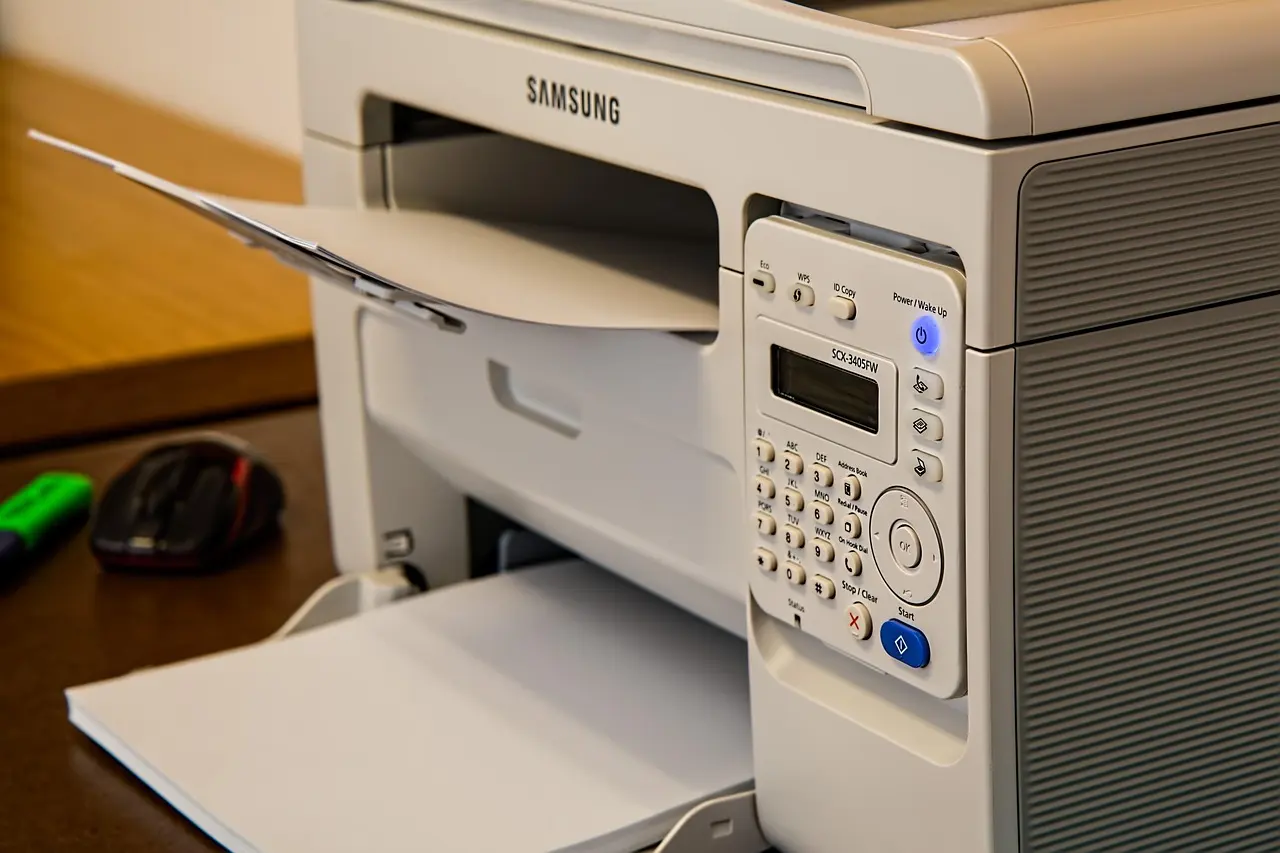
A printer that shows “offline” is almost never actually broken. Windows has either flagged it offline manually, lost track of its connection, or gotten stuck behind a jammed print queue. Work through the checks below in order, starting with the physical connection, and most printers come back online before you reach the last step. On the Windows 11 2024 Update (version 24H2) in particular, a networked printer can be flagged offline only because it did not answer Windows’ SNMP status query, which you fix in the printer’s port settings rather than by touching the printer itself.
Check the power, cable, and network connection first
Before touching any settings, confirm the printer itself is on and reachable. Turn the printer off, unplug it, wait about 30 seconds, then plug it back in and power it on; this clears a hung state inside the printer’s own firmware. For a USB printer, reseat the cable at both ends and try a different port if one is available. For a wireless printer, check that its Wi-Fi indicator light is solid rather than blinking, and confirm it is connected to the same network as your PC, not a guest network or a different band. Many older wireless printers only support the 2.4GHz band, so if your PC has switched to a 5GHz-only connection, the printer can drop off silently.
Uncheck “Use Printer Offline” in the print queue
Windows lets you manually mark a printer offline, and it is easy to trigger by accident, including through some driver updates. Open Settings > Bluetooth & devices > Printers & scanners (on Windows 10 this is Settings > Devices > Printers & scanners), select the printer, and choose Open print queue. In the queue window’s Printer menu, clear both Pause Printing and Use Printer Offline if either has a checkmark next to it. If the print queue is full of stuck jobs, select them and cancel them from the same menu before trying to print again.
Restart the Print Spooler service
A hung Print Spooler service is the most common reason a printer stays offline even after you clear the checkbox above. Search for services in the taskbar search box and open the Services app. Scroll to Print Spooler, right-click it, and select Restart. If jobs are still stuck afterward, stop the service instead, open %WINDIR%\System32\spool\PRINTERS in File Explorer and delete everything inside that folder, then go back to Services and start Print Spooler again with its startup type set to Automatic.
Set the printer as default and turn off automatic management
Windows can quietly switch your default printer, which sometimes makes the one you actually want to use look unavailable. In Printers & scanners, look under Printer preferences for the Let Windows manage my default printer toggle and turn it off if you want one printer to stay default regardless of which you used most recently. Then select your printer and choose Set as default.
Remove and re-add the printer
If the steps above have not fixed it, the driver or connection profile Windows has stored may be corrupted. In Printers & scanners, select the problem printer and choose Remove device, confirm the removal, then select Add device and let Windows search for it again. For a network or Wi-Fi printer, this also re-establishes a fresh connection to the printer’s current IP address, which fixes offline errors caused by the printer’s address changing after a router restart.
Symptom, cause, and fix at a glance
| Symptom | Likely cause | Fix |
|---|---|---|
| Printer worked before, now shows “Offline” with no changes made | Windows has it flagged offline manually | Uncheck Use Printer Offline in the print queue’s Printer menu |
| Jobs pile up in the queue and nothing prints | Print Spooler service is stuck | Restart Print Spooler in Services, clear the spool folder if needed |
| Wrong printer is used by default, or the right one looks unavailable | Windows auto-switched the default printer | Turn off Let Windows manage my default printer, then set it manually |
| Wireless printer was fine, now unreachable | Printer dropped off Wi-Fi or changed IP address | Confirm it is on the same network, then remove and re-add the printer |
| USB printer not detected at all | Loose cable or a bad port | Reseat the cable, try another USB port, power-cycle the printer |
Wireless printer trouble is often really a network problem rather than a printer problem, so if other devices are also losing their connection, it is worth checking whether Wi-Fi keeps disconnecting on Windows 11 before you spend more time on the printer itself. And if the print queue or Settings app freezes instead of responding while you work through these steps, the fixes for an app that won’t open on Windows cover the same stuck-process causes.
Most offline printers are fixed by the offline checkbox or a Print Spooler restart, so try those two first before removing anything. Keep the printer’s own connectivity test in mind too; running it from the printer’s control panel after a router restart is often faster than troubleshooting from the Windows side at all.
Common questions
Why does my printer keep going offline on Windows 11 24H2?
A common cause is a failed SNMP status check: open the printer’s properties, go to the Ports tab, choose Configure Port, and clear “SNMP Status Enabled.” Also confirm “Use Printer Offline” is unchecked in the print queue, and restart the Print Spooler.
How do I restart the Print Spooler on Windows 11?
Open the Services app, right-click Print Spooler, and choose Restart, or run Restart-Service spooler in an elevated PowerShell window. If jobs are still stuck, stop the service, clear the spool folder, then start it again.
My USB printer stopped working after a January 2026 update — what happened?
Some January 2026 Windows updates were linked to a USB printing bug that caused blank pages, random characters, or no printing at all. Install the latest updates, which address it, and reseat the USB cable at both ends.
What is Windows Protected Print Mode, and can it cause offline errors?
Windows Protected Print Mode, added in 24H2, uses a driverless IPP printing model and removes third-party drivers. A printer that does not support the IPP standard can stop working once it is enabled, so check that your printer is compatible before turning it on.