How to free up storage on an Android phone
Free up Android storage in the order that works: cloud offload, chat media, downloads, cache, trash. Uninstalling apps belongs last, not first.
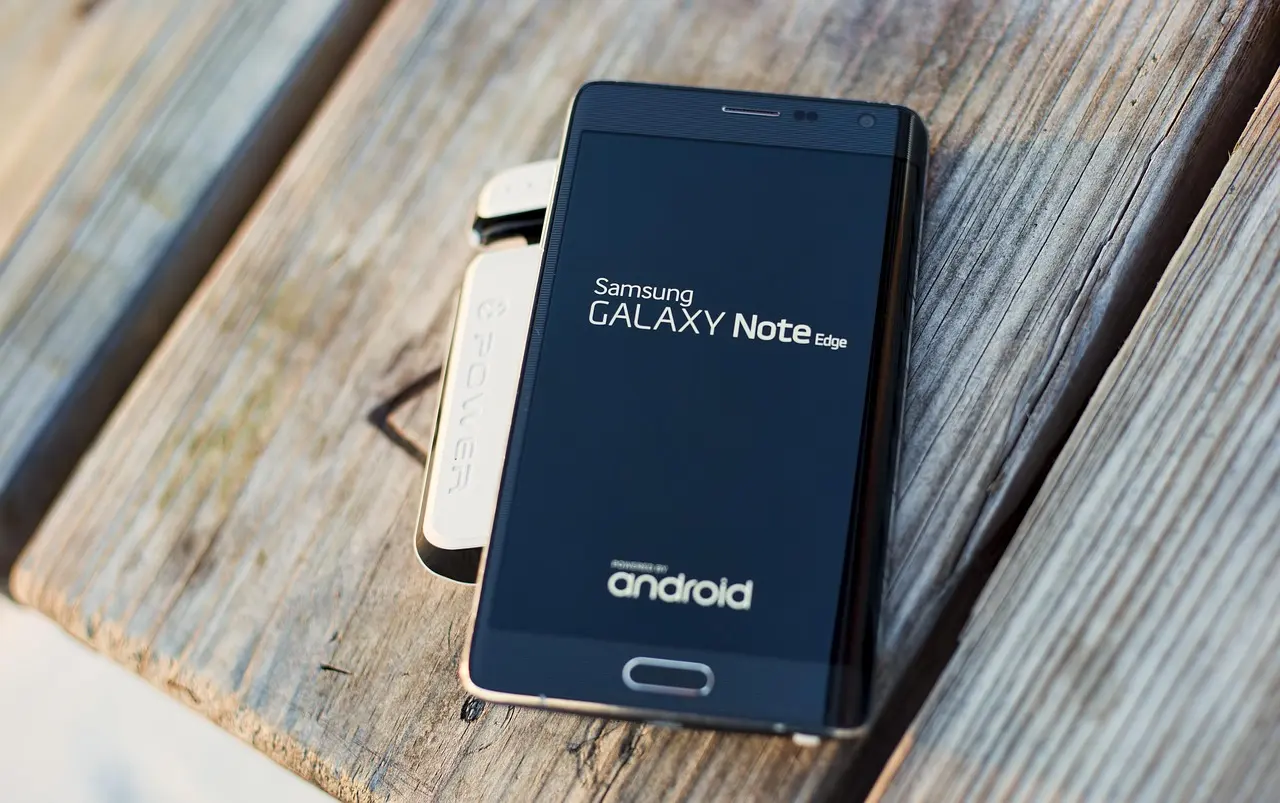
If your phone says storage is full, work through it in this order: offload photos and video that are already backed up, clear out messaging media, delete downloads and duplicates, clear the cache on your two or three worst apps, empty every trash, and only then remove apps. Uninstalling is the obvious lever and the weakest one, because it reclaims only the bytes an app owns and costs you the app permanently. One 2026 change worth knowing before you start: Android device backups — your texts, call history, and settings — now count against the 15 GB shared across your Google account, so a phone that has quietly stopped backing up may be a full Google account rather than a full phone.
Below is the reasoning behind that order, what each step actually deletes, how the two buttons on an app’s settings screen differ, and why “Other” or “System” storage has no delete button.
The order that recovers the most space
Each step trades some amount of loss for some amount of space. The steps near the top give back the most and take away the least.
| Step | What it frees | What it costs |
|---|---|---|
| Offload backed-up photos and video | Local copies of items that also exist in the cloud | Those items need a connection and the Photos app to view |
| Clear messaging media | Received images, video, stickers, voice notes, documents | Forwarded files are gone from the phone |
| Delete downloads and duplicates | Files that already exist somewhere else | Nothing, once you have checked what you are removing |
| Clear cache on a few apps | Regenerable temporary files | The app rebuilds them and is slower until it does |
| Empty every trash | Files you already deleted | The undo window closes |
| Uninstall apps | App files, preferences, and the app’s database | The app, permanently |
Samsung’s own ordered guidance for its phones follows the same shape: clearing app cache and data comes first, and uninstalling unused apps comes fifth, after media cleanup, SD card transfer, and clearing cloud backups.
Start with photos and video
Photos and video are the heaviest thing a camera phone accumulates, and they are also the one large category you can remove without losing anything. In Google Photos, “Free up space” deletes the local device copies of items that have already been backed up. The cloud copies stay, viewable in the app and at photos.google.com, and items less than 30 days old may be kept on the device anyway.
The fear that stops people using this is that it deletes the cloud copy too. It does not. What changes is offline access: an offloaded photo is no longer sitting in your local gallery folder, so you need a connection and the app to see it. Keep the handful of pictures you want available on a plane, and offload the rest.
Then clear out messaging media
Chat apps fill storage by receipt. Every image, video, sticker, GIF, and voice note that arrives in any chat gets written to storage, and with auto-download on, group chats deposit files you never opened.
WhatsApp on Android has a dedicated tool for this under Storage and data > Manage storage. It gives you a per-chat view that sorts files largest to smallest, a “Clear media files” action with checkboxes for Videos and GIFs, Photos, Stickers, Documents, and Audio, and a “Delete any copies” option for duplicates. That last one matters because the same forwarded video arriving through four different chats is stored more than once.
Sort by size, look at your busiest group first, and start with video. One caution before you go further: if you ever plan to uninstall a messaging app, copy anything you want to keep out of its media folder into your own gallery or a cloud drive first. Do not assume the folder survives the uninstall.
Downloads and duplicates are dead weight by definition
The Downloads folder is where files go to be forgotten: installers you already ran, PDFs you already read, images you saved twice. Nothing in it is load-bearing for the system.
Duplicates form structurally, not through carelessness: editing a photo writes a second file next to the original, saving an attachment you already have creates a copy, and forwards multiply the same file across chats. Files by Google is worth naming here because Google documents what it cleans, including junk files, duplicate files, screenshots, downloaded files, large files, WhatsApp media files, and backed-up photos.
Deduplication works by hashing file contents, so it finds byte-identical copies reliably. Near-identical files, like burst shots or an edit sitting next to its original, are a harder problem, and those suggestions deserve a look before you confirm them.
Cache is real space, but it is soft
Apps write disposable files to their cache directories, and Android’s documentation is explicit that those files may be deleted by the system when the device is low on internal storage. You can see the design in the API: getAllocatableBytes() can legitimately return a number larger than the current free space, because the system has already identified cache files in other apps that it can remove to satisfy a request.
Two consequences follow. Clearing cache gives an immediate win that partly reverses as apps rebuild what they need, and it is space Android would have taken back on its own under pressure. So clear cache on the few apps showing the largest numbers, and skip it as a routine chore. Samsung’s own support page warns that clearing data for an app you use a lot makes the app run slower.
Clear cache and Clear storage are not the same button
They sit next to each other on the same screen and do very different things. Google’s help draws the line plainly: clear cache deletes temporary data, while clear storage permanently deletes all app data. The second one wipes databases, preferences, and login state, which is how people end up logged out of everything and missing their offline downloads.
If an app is misbehaving, cache first. Only reach for clear storage when you are ready to set the app up again from scratch.
What “Other” and “System” storage really is
“Other” is not a category anybody designed. Storage screens sort files into Images, Videos, Audio, Documents, and Apps, and whatever matches none of those classifiers falls into the leftover bucket. Samsung describes its own version as data from installed apps, system files, cached data, and temporary files that fit no other category, and says plainly that it cannot be deleted directly from the device.
That bucket holds real things: per-app databases, app-specific directories on external storage, downloaded assets and model files, streaming caches, and leftover installer files. Much of a modern app’s payload is opaque binary data that no media scanner can classify, which is why the bucket grows. There is no “clear Other” button because it is not one category with one owner. It shrinks when you clear the caches and app data underneath it.
Why the advertised capacity was never all yours
Some of the gap between the number on the box and the number in Settings is arithmetic. Storage is sold in decimal units, where 1 GB is 1,000,000,000 bytes, while the device reports binary units, where 1 GiB is 1,073,741,824 bytes. A “128 GB” phone therefore holds about 119.2 GiB before any software exists on it.
The rest is partitions. Android splits flash into system partitions (boot, system, product, and others), vendor partitions, and non-updatable ones including userdata. Only userdata holds your apps and your files. The others were carved off at the factory.
System updates want space too, temporarily. On devices using Virtual A/B, an update is written as a snapshot on /data and merged into the base partition after a successful boot. AOSP puts that requirement at roughly 3.8 GB uncompressed and about 2.1 GB with compression, and calls it transient until reboot. That explains both the update that refuses to install on a nearly full phone and the system storage spike that resolves itself afterward.
One more number worth knowing: Android’s low-storage warning fires at 5% of total capacity, capped at 500 MiB, while the threshold it treats as genuinely full is 1 MiB. On a large phone the cap binds, so the warning arrives with 500 MiB still free whether the device is 64 GB or 512 GB. It is an early alarm, not a report that the space has run out.
Empty every trash, or none of it counts
Deletion on Android is deferred at several levels at once, and files keep occupying space after you believe they are gone.
The media store has a trash of its own, and its documentation says items there are permanently deleted after a system-defined time period. Your manufacturer’s gallery app may add a second recycle bin on top of that, sometimes moving items into it without a dialog. Google Photos adds a third: backed-up items stay in its trash for 60 days before permanent deletion, and items that were never backed up go after 30.
So after a big cleanup, walk the bins: the gallery’s recycle bin, the Photos trash, and the Files app’s trash. Google’s manual flow on stock Android is Settings > Storage > “Free up space”, then “Move files to Trash”, which is a reminder that the move is only the first half of the job.
Why uninstalling apps comes last
An uninstall removes what the app owns: its app-specific files, its preferences, and its database. Media and documents in shared storage are not removed. Deleting your camera app does not delete your photos, and deleting a browser does not empty your Downloads folder.
Look at the size shown next to an app in Settings. A large part of that figure is cache and regenerable data the app would give up on request, so the space you actually recover by uninstalling is smaller than the number suggests, and you lose the app to get it. If an app bothers you more than it costs you in storage, the fix may be to turn off that app’s notifications and leave it installed. If it is genuinely bloated, look for a lighter replacement among the open source Android apps worth trying before deleting the one you rely on.
Preinstalled apps are a separate case. Google’s own description of disabling is that it hides the app, prevents it from running or updating, and stops it using system resources, while keeping it on your phone. Uninstalling updates for such an app rolls back the update stored in userdata and returns the factory version, which lives on a read-only OS partition that was never counted as your space to begin with.
Third-party cleaner apps sit in the same category of effort with little return. Their headline wins are largely the cache the system already evicts on demand, and they add a permanently running app to a phone that is short on resources.
What to do next
Open Google Photos, confirm the backup is current, and run “Free up space”. Then open your busiest chat app, sort its media by size, and clear the video. Check Downloads. Clear cache on the two or three apps with the biggest numbers, leave the rest alone, and empty the gallery bin and the Photos trash so the deletions count.
Recheck the storage screen once the bins are empty. If the phone still feels wrong in ways that have nothing to do with space, that is a different problem, and a device-specific guide such as the fixes for common OnePlus 3 problems beats another round of deleting.
Common questions
Do Android backups count toward my Google storage now?
Yes. As of 2026 all Android backup data — SMS, call history, and device settings — counts against the 15 GB of free storage shared across Drive, Gmail, and Photos. If the account is full, the phone stops updating its backups until you free up space or upgrade your plan.
How long do deleted photos stay in the Google Photos trash?
Thirty days, after which they are permanently deleted. Google shortened the window from 60 days in a September 2026 change, so rescue anything you want back, or empty the trash to reclaim the space, sooner than you used to.
Why can I not delete “Other” or “System” storage directly?
“Other” is a leftover bucket of app databases, cached data, and files that no media scanner can classify, and it has no single owner and no delete button. It shrinks indirectly when you clear the app caches and app data underneath it, not through a control of its own.
Why is my phone’s storage smaller than the advertised capacity?
Storage is sold in decimal gigabytes but reported by the phone in binary units, so a “128 GB” phone shows about 119 GiB before any software. Factory partitions for the operating system take more on top of that, and none of it was ever space you could use.