Bluetooth Not Working on Windows 11
Headphones or a mouse that will not pair on Windows 11? Work through Microsoft's own checks in order, from airplane mode to a full driver reinstall.
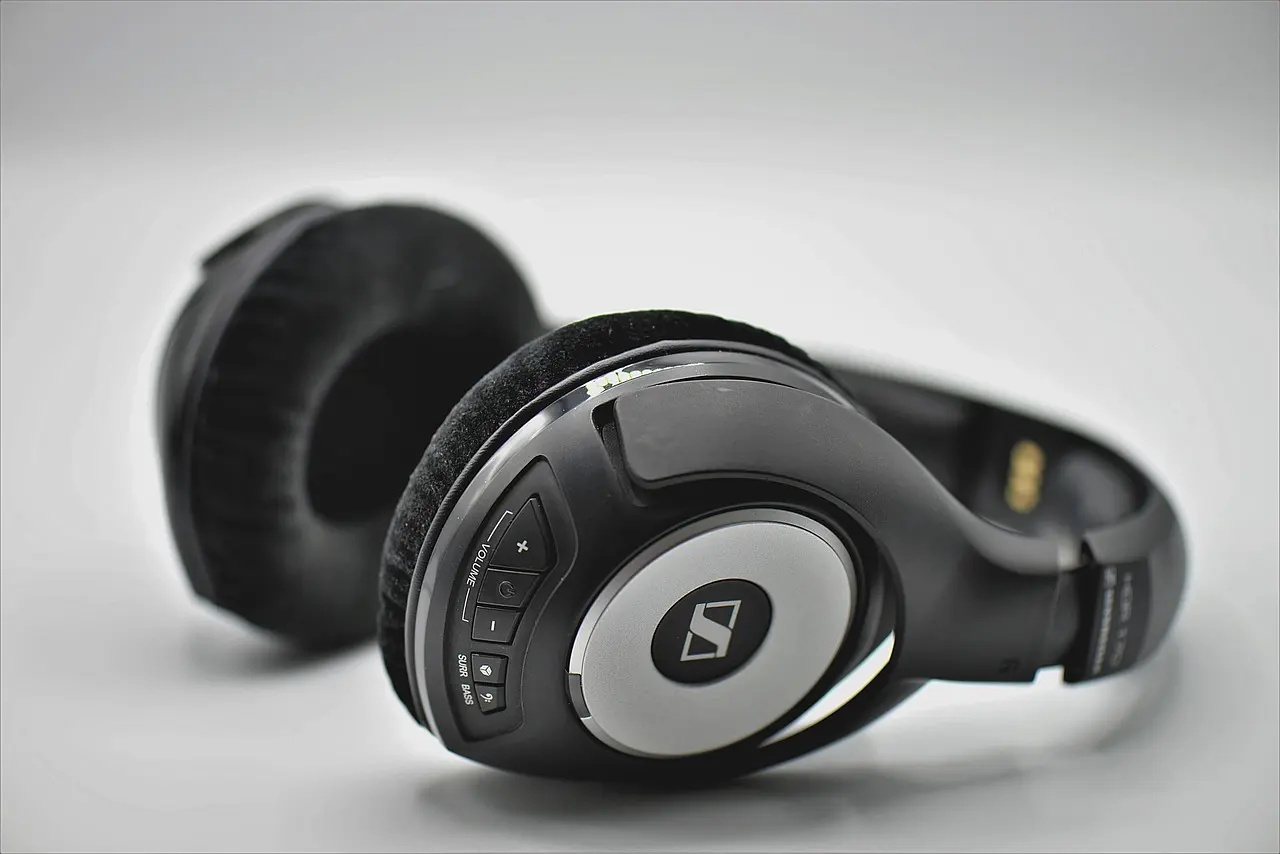
When Bluetooth stops working on Windows 11, the cause is usually one of four things: airplane mode is on, the accessory is not in pairing mode, the pairing itself has gone stale, or the adapter’s driver needs a refresh. Work through them in that order and most cases resolve in a couple of minutes without touching anything risky. The steps below follow Microsoft’s own troubleshooting guidance for Windows, so you are not guessing at menu paths. If your accessory pairs and plays fine but no longer appears on the Bluetooth & devices page or in Quick Settings after a 24H2 or 25H2 update, that particular visibility bug was a Windows fault Microsoft corrected through its March 2026 updates, not something re-pairing will fix.
Rule out the accessory first
It is worth spending thirty seconds on the device before you start changing settings on the PC. Microsoft’s guidance is blunt about it: confirm the accessory is turned on, is charged or has fresh batteries, and is in range of your PC. Then power it off, wait a few seconds, and turn it back on.
Most headphones, speakers, and keyboards also need to be put into pairing mode deliberately — usually by holding the power or a dedicated pairing button until a light blinks in a different pattern. A device that is simply switched on is often not discoverable. Check the accessory’s own instructions for what that pattern looks like, because it differs by manufacturer and there is no universal rule.
One more thing that catches people out: many Bluetooth accessories only hold one active connection. If your earbuds are still connected to your phone, they may refuse to show up on the PC at all. Disconnect them at the other end first.
Check airplane mode and the Bluetooth toggle
Airplane mode switches off Bluetooth along with Wi-Fi, and it is easy to leave on by accident. Open Settings > Network & Internet > Airplane mode and confirm it is off, or check the quick settings by selecting the network, sound, or battery icons on the taskbar.
Then go to Settings > Bluetooth & devices and make sure the Bluetooth toggle is on. When it is working, Windows shows a line reading “Discoverable as” followed by your computer’s name. If you do not see that, the adapter is not active yet.
Toggling Bluetooth off, waiting a few seconds, and turning it back on resets the radio and clears a surprising number of temporary faults. It costs nothing and is the first thing to try once you have confirmed the accessory itself is ready.
Run the built-in troubleshooter
Windows ships a Bluetooth troubleshooter that checks the service, the radio state, and the driver, and repairs what it can on its own. Open Settings > System > Troubleshoot > Other troubleshooters and select Run next to Bluetooth.
Microsoft also exposes the same tool through the Get Help app, which walks you through the checks interactively. Either route runs the same diagnostics. Let it finish and reboot if it asks — a partial run tells you very little.
Remove the device and pair it again
If a device paired correctly once and has stopped connecting, the stored pairing is the most likely culprit. Deleting it and starting fresh is safe and takes under a minute.
Go to Settings > Bluetooth & devices > Devices, find the accessory, select More options (the three dots next to it), then Remove device and confirm with Yes. Put the accessory back into pairing mode and add it again from the same screen.
This matters more than it sounds. A stale pairing record can leave a device permanently listed as “Paired” while never actually connecting, and no amount of toggling Bluetooth will shift it. Removing the entry forces both sides to negotiate the link from scratch.
Update or reinstall the adapter driver
When the accessory is fine and the pairing is fresh but nothing connects, the driver is the next suspect. Search for Device Manager from the taskbar and open it, then expand the Bluetooth section and find your adapter.
Right-click it and choose Update driver, then Search automatically for updated driver software. If you have downloaded a driver package from your PC manufacturer that contains .inf and .sys files, use Browse my computer for drivers instead and point Windows at that folder.
If updating changes nothing, reinstalling is the stronger move. Right-click the adapter, select Uninstall device, then restart the PC. Windows attempts to reinstall the adapter automatically on boot. That sounds alarming and is not — the driver comes back on its own in the normal case, and on a laptop the manufacturer’s support page has the original package if it does not.
Symptom, likely cause, what to try
| Symptom | Likely cause | What to try |
|---|---|---|
| No Bluetooth toggle in Settings at all | Adapter disabled or driver missing | Check Device Manager for the adapter; reinstall the driver |
| Toggle is on, no devices found | Accessory not in pairing mode, or connected elsewhere | Put the accessory in pairing mode; disconnect it from your phone |
| Device shows as paired but will not connect | Stale pairing record | Remove the device and pair it again |
| Everything wireless stopped at once | Airplane mode | Turn airplane mode off in Network & Internet |
| Worked until recently, now intermittent | Driver or radio fault | Run the Bluetooth troubleshooter, then update the driver |
When Bluetooth is missing from Settings entirely
If there is no Bluetooth section in Settings and no Bluetooth category in Device Manager, Windows cannot see the adapter at all. On a desktop PC that often means there simply is not one — Bluetooth is not standard on every motherboard, and a USB Bluetooth adapter solves it. On a laptop it usually points at a disabled device or a driver that failed to load, so start with the manufacturer’s support page for your exact model rather than a generic driver.
Some laptops also have a hardware switch or a function-key combination that disables the wireless radios. It is worth checking the row of function keys for a small radio or airplane symbol before assuming the adapter has failed.
A stubborn case that survives all of the above is worth separating from a software problem. If the adapter disappears and reappears in Device Manager, or only works when the laptop is cold, that pattern points at hardware rather than configuration. Booting into a clean startup environment can help confirm it — the same approach covered in our guide to Safe Mode on Windows 11, where only Microsoft’s own drivers load.
Bluetooth faults rarely need drastic measures. The order matters more than the individual steps: confirm the accessory, clear airplane mode, let the troubleshooter run, re-pair, then touch the driver. If wireless problems on the same machine extend to the network as well, our guide to Wi-Fi that keeps disconnecting on Windows 11 covers the overlapping causes, and Android users hitting the same wall will find the equivalent steps in Bluetooth not connecting on Android.
Common questions
Why did my Bluetooth devices stop showing on the Bluetooth & devices page after a Windows 11 24H2 update?
This was a known Windows fault on versions 24H2 and 25H2, where paired accessories kept working but no longer appeared in Settings or Quick Settings. Microsoft fixed it in its March 2026 updates, so the answer is to install the latest cumulative update rather than to re-pair anything.
Why does my Bluetooth mouse or keyboard keep dropping when the laptop wakes from sleep?
Windows can power the Bluetooth adapter down to save battery and then fail to bring it back cleanly. Open Device Manager, right-click the adapter under Bluetooth, choose Properties, open the Power Management tab, and clear “Allow the computer to turn off this device to save power.”
The Bluetooth toggle disappeared from Settings after I updated to 24H2, so how do I get it back?
A driver that failed to load during the update is the usual cause. In Device Manager, uninstall the adapter under Bluetooth and restart so Windows reinstalls it, or download the current Bluetooth driver from your PC maker’s support page for your exact model.
Why does my Bluetooth headset show as paired but refuse to connect?
A stale pairing record can leave a device listed as paired while never completing the connection. Remove the device from Bluetooth & devices, put the headset back into pairing mode, and add it again so both ends negotiate the link from scratch.