Android Phone Connected to Wi-Fi but No Internet
Wi-Fi shows connected but nothing loads. Work through the router, the sign-in page, Private DNS, VPN apps and router blocks in the order that finds it.
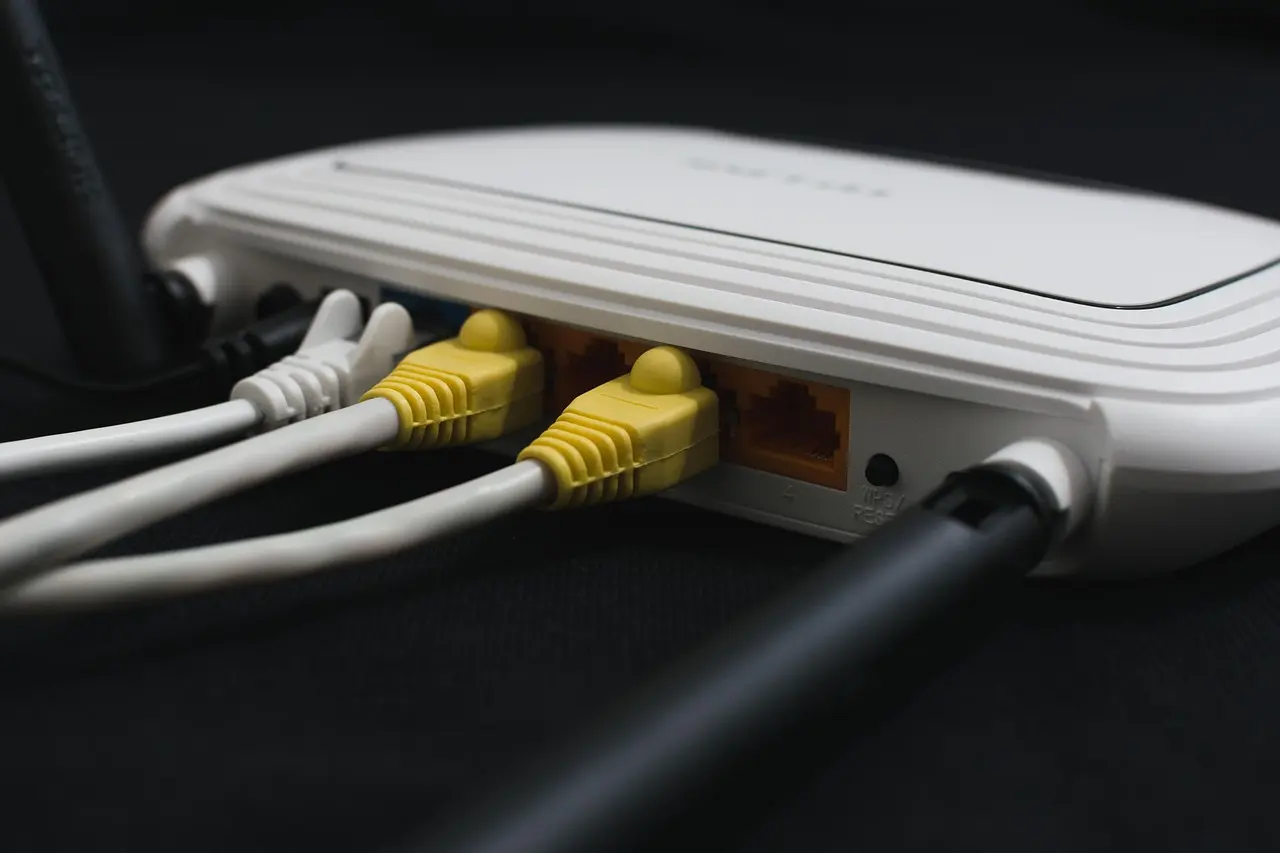
When Android warns that a Wi-Fi network has no internet, it is telling you something precise: the phone joined the network without trouble, but a background check could not reach the public internet through it. The fastest fix starts with one test: work out whether the fault sits on the network or on the phone. Usually the answer is the connection upstream of the router, a sign-in page nobody completed, or a DNS setting on the phone. On a Galaxy running Android 16 and One UI 8, a “Private DNS server cannot be accessed” notice points at that same DNS setting: a saved hostname the current network blocks on port 853, cleared by switching Private DNS back to Automatic.
Start by deciding: the network or the phone
Google’s troubleshooting flow is a three-way test, worth doing before you touch a setting. Try another device on the same Wi-Fi, the phone on a different Wi-Fi network, and the phone on mobile data. If the phone alone fails while other devices are fine, the fault is phone-side; if nothing on the network works, Google says the problem is most likely the internet connection itself.
Power-cycle the router before anything else. Unplug it until the lights go out, leave it off for at least 15 to 30 seconds — Google’s own pages give both numbers — then plug it back in and give it a few minutes for the lights to settle. On the phone, restart it, toggle Wi-Fi off and on, and switch airplane mode on for about ten seconds and back off. If a Windows PC on the same network is also struggling, our guide to Wi-Fi that keeps disconnecting on Windows 11 covers that side of the house.
| What you see | Likely cause | What to do |
|---|---|---|
| No device on the network works | The ISP or the router’s WAN link is down | Power-cycle the router, then check with the provider |
| Only this phone fails, others are fine | A phone-side setting or an installed app | Work through the phone checks below |
| Hotel, cafe, campus or guest network | A sign-in page never completed, or expired | Forget the network, rejoin, and let the sign-in page load |
| Fails on every Wi-Fi, fine on mobile data | A Private DNS hostname it cannot reach, or a VPN | Set Private DNS to Automatic and disconnect the VPN, then retest |
| One phone gets cut off, or it began after a router change | Parental controls, a paused device, or MAC filtering | Check the router app, then switch that network to the phone’s device MAC |
| Pages actually load but the warning stays | The connectivity check itself is being blocked | Allow the check endpoints on the filter or blocklist |
| Nothing above helped | Stale network state on the phone | Reset Wi-Fi and Bluetooth settings, knowing saved passwords go too |
What Android actually means by “no internet”
Android keeps two separate ideas about a network. One says the network is set up to access the internet; the other says the network actually reaches the public internet when it is probed. Google’s developer documentation puts it plainly: a network behind a captive portal, or one that does not provide domain name resolution, does not get the validated capability. Broken DNS on its own is enough to trigger the warning even when the Wi-Fi link and the router are otherwise healthy.
The check is a pair of simultaneous HTTP and HTTPS probes to a small set of endpoints. Samsung documents the list — the generate_204 addresses at www.google.com, connectivitycheck.gstatic.com and play.googleapis.com — and notes that when those probes fail, One UI shows the network as “Connected without internet”. When the two probes disagree, for instance HTTP succeeding while HTTPS fails, Android lands in a partial connectivity state, which is one reason a sign-in page sometimes never appears on its own.
That has a practical consequence worth knowing. If something on your network blocks those check endpoints — a Pi-hole or blocklist at home, a school or workplace filter — the phone can flag no internet while ordinary browsing still works. The fix there is to allow the endpoints in the filter, not to keep resetting the phone.
Check Private DNS if every Wi-Fi network fails
This is the cause almost nobody thinks to look at, and it fits a specific pattern: mobile data is fine, home Wi-Fi may be fine, but certain networks fail completely. Private DNS arrived in Android 9 and has three settings — Off, Automatic, and a provider hostname. Automatic is opportunistic and falls back to ordinary DNS, so it is not your problem. The hostname mode fails closed: Google states that Android sends all DNS queries over a secure channel to that server, or marks the network as having no internet access if it cannot reach it.
The reason it breaks on some networks is the transport. DNS over TLS needs a secure connection on port 853, and some hotel, campus and corporate networks block that port — and many captive portals intercept DNS themselves, which a strict Private DNS setting will not tolerate. Set Private DNS to Automatic and retest. One detail trips people up: that field takes a hostname, not an IP address, so dns.google and one.one.one.one are valid entries while typing an address like 8.8.8.8 there is not. On stock Android the setting sits under Network & internet; Google lists the three options and the path, while Samsung keeps it under Connections and More connection settings. If pages fail in the browser too, our notes on Chrome pages that will not load cover the browser-side half of DNS trouble.
Public, hotel and guest networks: the sign-in page
Android has detected captive portals since Android 5.0 and prompts you to sign in. Android 11 added support for networks that advertise a captive portal API during the DHCP handshake, but only when the network advertises it; otherwise the phone falls back to the same probes as before. The prompt is not guaranteed to appear.
If it does not, check your notification shade, tap the network in the Wi-Fi list, and try opening a plain HTTP page in a browser rather than a bookmarked HTTPS site. Forgetting the network and rejoining is the documented remedy when the sign-in never triggers. Two settings quietly sabotage this. Cloudflare warns that a static IP configuration set up to change DNS can prevent you from connecting to networks that use captive portals, so remove those static settings, sign in, then put them back. And a wrong clock breaks the HTTPS half of the check, because TLS certificates are time-sensitive — turn on the automatic option in the phone’s date and time settings. Before you sign in to anything unfamiliar, it is worth reading what public Wi-Fi is and is not safe for.
Rule out a VPN, a DNS changer, or a filtering app
An always-on VPN configured to block connections without VPN will leave the phone looking connected while nothing reaches the network, because traffic is only allowed through a tunnel that is down. Disconnect the VPN and retest. On stock Android the VPN screen usually sits under Network & internet, with a settings icon next to each entry; older layouts group it under an Advanced heading, and other skins file it with the rest of the connection settings.
For anything else — ad blockers, firewalls, security suites, DNS-changer apps — safe mode is the documented test. Google and Samsung use the same logic: if Wi-Fi works in safe mode, a downloaded app is the likely cause, and you uninstall recent additions one at a time. Getting there differs by phone, through the power menu on a Pixel, or by pressing and holding Power off in the quick panel on a Galaxy until Safe mode appears.
When the router is blocking that one phone
Parental controls, a paused device, a schedule, MAC filtering, or a guest-network device limit will all produce Wi-Fi with no internet on one phone while everything else works. Randomized MAC addresses make this stranger to diagnose. Android 10 and later use one by default, and Google’s own router documentation says Family Wi-Fi features do not work with a randomized MAC address because the setting prevents the device from being identified; Linksys says much the same about parental-control schedules and MAC filters.
One myth to drop: forgetting and rejoining does not hand the phone a new address. Android derives the persistent randomized MAC from the network profile, and it does not re-randomize when you forget and re-add the network. If the router needs to recognize the phone, switch that network to the device MAC instead. The control lives on the individual network’s screen in Wi-Fi settings, and its label varies — Pixel shows the randomized MAC address there, Samsung calls it MAC address type.
Clear stale settings on that network, then reset
A proxy left over from a work configuration and a static IP left over from a printer setup both survive on the saved network, and both look exactly like this. On Pixel they sit together: open the Wi-Fi list, edit the network, expand Advanced options, and check Proxy; the same screen holds the IP settings. Forgetting the network and rejoining clears both at once.
| What you’re looking for | Stock Android / Pixel | Samsung One UI |
|---|---|---|
| The Wi-Fi list | Network & internet > Internet | Connections > Wi-Fi |
| Private DNS | Network & internet > Private DNS | Connections > More connection settings > Private DNS |
| Network reset | System > Reset options > Reset Bluetooth & Wi-Fi | General management > Reset |
A network reset is the last step, not the first. Google’s current pages call the item Reset Bluetooth & Wi-Fi while older wording was Reset Wi-Fi, mobile & Bluetooth, and Samsung places its version under General management and Reset. Whatever it is called on your phone, it wipes saved Wi-Fi passwords and Bluetooth pairings, so expect to re-enter network passwords and pair your accessories again — if something stays stubborn afterward, Bluetooth that will not connect on Android walks through re-pairing.
Work the list in order and you rarely reach the bottom. Check the other devices, restart the router, complete any sign-in page, then look at Private DNS and any VPN before you clear settings. The reset exists for genuine phone-side corruption, and it is a poor first move for a problem that usually lives on the network.
Common questions
Why does my Galaxy show “Private DNS server cannot be accessed” after the One UI 8 update?
The phone cannot reach the DNS hostname you saved over the secure port that network requires, so Android marks the connection as having no internet. Open Connections, More connection settings, Private DNS, set it to Automatic, and reconnect. A custom hostname often works on your home network but fails on public or workplace Wi-Fi that blocks port 853.
My Pixel says connected but has no internet only on public Wi-Fi. What is it?
Almost always an unfinished captive-portal sign-in. Open a plain HTTP page in the browser to force the login screen, and check that the date and time are set automatically, since a wrong clock breaks the secure half of the connectivity check and stops the sign-in page appearing.
Wi-Fi lost internet the moment I turned on a VPN. How do I fix it?
An always-on VPN set to block traffic outside the tunnel leaves the phone looking connected while nothing reaches the network. Disconnect the VPN, or turn off its “Block connections without VPN” option, then retest.
Pages actually load but Android still warns “no internet.” Why?
Something on the network is blocking Android’s connectivity-check endpoints, such as a home Pi-hole or a workplace filter. Allow those check addresses on the filter or blocklist rather than resetting the phone, since the browsing itself is fine.