How to Fix ERR_CONNECTION_RESET in Chrome on Windows
ERR_CONNECTION_RESET means Chrome's connection was cut mid-request. Clear the cache, flush DNS, reset the network stack, and rule out VPN and antivirus.
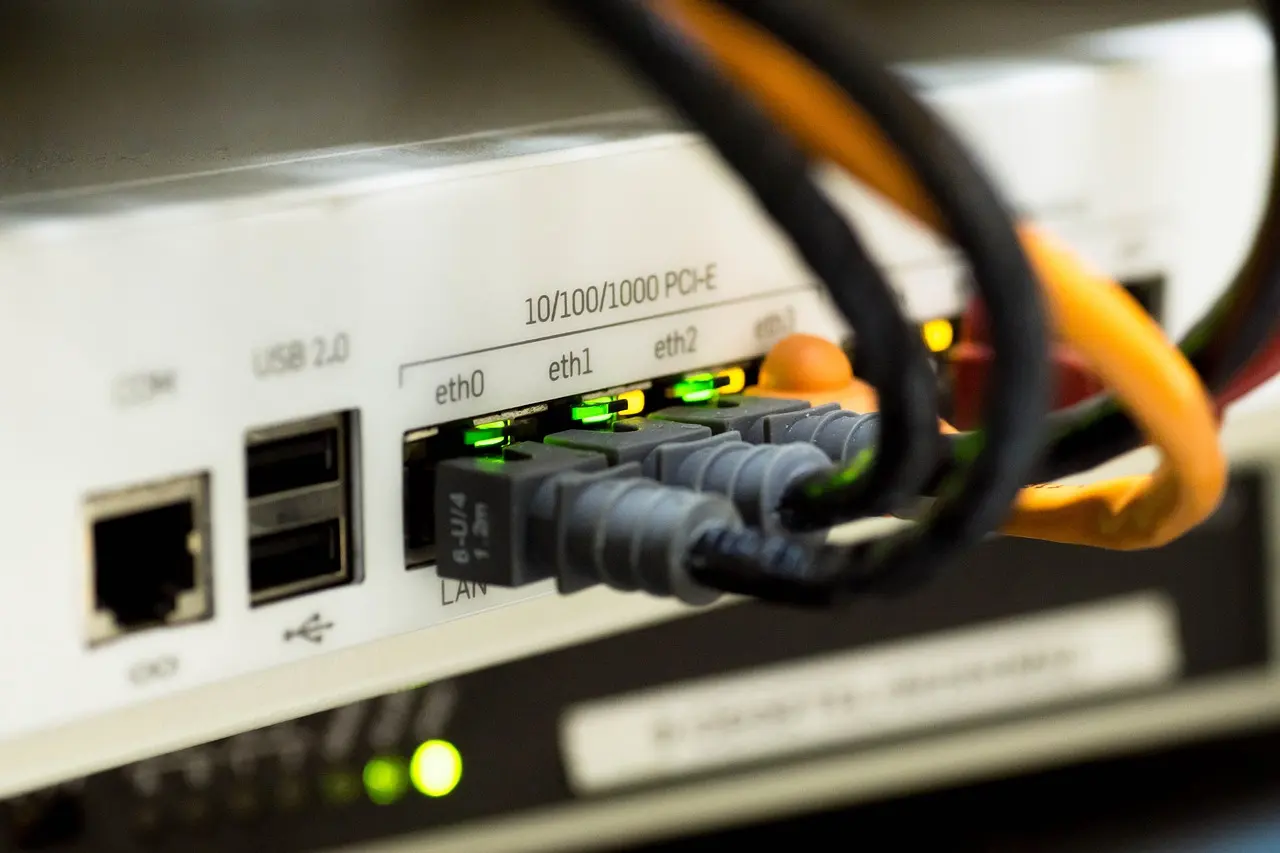
ERR_CONNECTION_RESET means Chrome opened a connection to the site, then had it cut off before the page finished loading. The fix is to work from the browser outward: clear the cache, flush DNS and reset the network stack, then rule out anything that intercepts traffic, such as a VPN, a proxy, or antivirus that scans HTTPS. Start at the top of the list, because the first couple of steps clear most cases. At the network level this is Chromium error -101: some device between you and the site sent a TCP reset packet, which is why a filtering router, an ISP blocking a domain, or an over-eager antivirus can all produce it.
What ERR_CONNECTION_RESET actually means
Unlike a page that simply times out, a reset happens when the connection is established or in progress and then dropped mid-stream. At the network level, one side sends a reset packet and Chrome gives up. That is a useful clue, because it points at something between your browser and the server actively closing the pipe, rather than a site that is completely offline.
It is easy to confuse with a sister error. ERR_CONNECTION_REFUSED means the server was reached but turned the connection away, usually because nothing is listening on that port or a firewall rejected it outright. A reset means the handshake got further and then broke. If one site throws the error while everything else loads, suspect that site or its firewall. If every site resets, the cause is almost certainly on your PC or your local network.
| Symptom | Likely cause | First fix |
|---|---|---|
| One site resets, others load fine | That server, its firewall, or a stale cached copy | Clear the cache; try the site in Incognito |
| Every site resets on one PC | Corrupt network stack, proxy, or driver | Flush DNS and run the netsh reset commands |
| Resets only with the VPN on | VPN client or its kill switch | Disconnect the VPN and retest |
| Resets began after installing security software | Antivirus HTTPS or “web shield” scanning | Pause HTTPS scanning and retest |
| Large pages or downloads reset partway | MTU mismatch on the link | Lower the interface MTU |
| Resets on Wi-Fi, fine on Ethernet | Unstable wireless link | Move closer or switch to a cable |
Start in the browser
Rule out Chrome’s own stored copy of the site first. Open the menu (the three dots at top right) and choose Delete browsing data — older builds label it Clear browsing data — or just press Ctrl+Shift+Delete. Set a time range, tick Cached images and files, and select Delete data (Google Chrome Help: clear cache and cookies). Reload the page.
Two quick cross-checks narrow things down. Open the site in an Incognito window (Ctrl+Shift+N), which runs without extensions and without most cached data; if it loads there, an extension or the cache was the culprit, and disabling extensions one at a time finds which. If clearing the cache helped but sign-ins now nag you, clearing cookies in Chrome is the related step and explains what you lose. Should the browser feel sluggish in general as well, why Chrome runs slow covers the extensions and settings behind that.
Reset Windows networking
When every site resets, refresh the networking software underneath the browser. Open Command Prompt with admin rights: select Search on the taskbar, type Command Prompt, and to the right of the result choose Run as administrator, then Yes. Run these in order, as Microsoft documents for connection problems (Microsoft Support: fix Ethernet connection problems in Windows).
| Command | What it does |
|---|---|
netsh winsock reset | Rebuilds the Winsock catalog that every network app uses |
netsh int ip reset | Returns the TCP/IP stack to its default state |
ipconfig /release | Drops the current IP lease from the router |
ipconfig /renew | Requests a fresh IP address |
ipconfig /flushdns | Clears stale entries from the DNS cache |
The winsock reset needs a reboot to finish, so restart the PC after the last command. One caveat: this wipes any custom DNS servers or static IP you set by hand, so note those down first if you use them.
Rule out VPN, proxy, and HTTPS scanning
Anything that sits in the middle of your traffic can send that reset, so test each layer in turn.
Turn off any VPN and retest. A dropped tunnel or an over-eager kill switch shows up as exactly this kind of mid-request reset. If you rely on one, whether you actually need a VPN is worth a look before you troubleshoot around it. Then check the proxy: go to Settings > Network & internet > Proxy, leave Automatically detect settings on, and switch Use a proxy server off unless your workplace requires one.
Security software is the other common culprit. Many suites inspect encrypted traffic through a feature called HTTPS scanning, SSL scanning, or a “web shield,” and when it misfires it cuts the connection. Pause that feature, or the antivirus briefly, and reload; the exact toggle depends on the product, so check its settings. Whether you need third-party antivirus at all is a fair question on modern Windows. If pausing the scanner fixes it, the culprit is confirmed — re-enable protection and add an exception for the site or for Chrome rather than leaving scanning off.
When it is the connection itself
If resets survive all of the above, look at the link. On Wi-Fi, an unstable signal drops connections mid-transfer, so test on Ethernet or move closer to the router to confirm. A stale or buggy network driver does the same: open Device Manager, expand Network adapters, right-click yours, choose Update driver, then Search automatically for drivers.
A subtler cause is an MTU mismatch, where packets are too large for some hop along the way and get dropped, often on DSL or certain VPNs. Check the current values with netsh interface ipv4 show subinterfaces, then lower one interface, for example netsh interface ipv4 set subinterface "Wi-Fi" mtu=1472 store=persistent, matching the name to your adapter. Set it back to mtu=1500 if it makes no difference. MTU tuning is a last resort, not a routine fix.
Once pages load again, note which step fixed it, because the same machine tends to fail the same way. If a VPN or an antivirus feature was to blame, keep it updated rather than off; if the network stack was, the netsh sequence is a safe first move next time. And if only one site keeps resetting while the rest of the web is fine, the problem is almost certainly at that site’s end, not yours, so wait it out or contact the owner instead of resetting your own PC again.
Common questions
What is the difference between ERR_CONNECTION_RESET and ERR_CONNECTION_REFUSED?
A reset means the connection was already established or in progress and then cut mid-stream by a reset packet; a refused connection was turned away at the door, usually because nothing was listening on the port. A reset points at something interrupting live traffic, such as a VPN, antivirus, or an unstable link.
Can my ISP cause ERR_CONNECTION_RESET?
Yes. ISPs and corporate filters can read the site name in the connection handshake and send a forged reset to block it, which looks the same as a server fault. Trying the site on mobile data instead of home Wi-Fi is a quick way to tell.
Do the netsh reset commands delete my settings?
netsh winsock reset and netsh int ip reset return the networking stack to its defaults and need a reboot to finish. They wipe any custom DNS servers or static IP you set by hand, so note those down first, but they leave your files and browser data alone.
Why does the reset happen only when my VPN is on?
A dropped tunnel or an over-eager kill switch shows up as exactly this kind of mid-request reset. Disconnect the VPN and reload to confirm; if that fixes it, keep the VPN client updated rather than leaving it switched off.