How to block a phone number on Android
Block calls and texts on Android from the Phone app and Messages, manage your blocked-numbers list, silence unknown callers, and unblock anyone later.
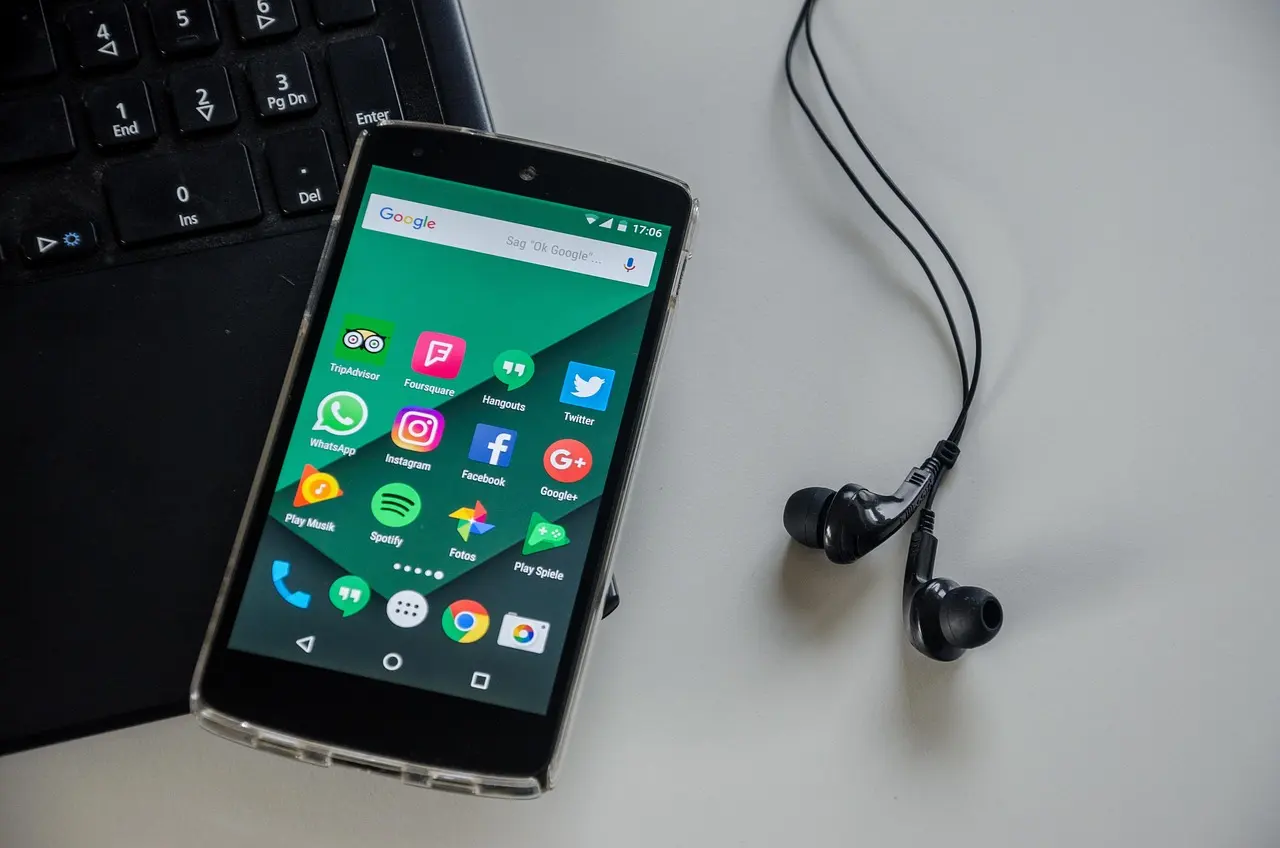
Android gives you two places to block a number: the Phone app handles calls, and Google Messages handles texts. The quickest fix for a nuisance caller is to open the Phone app, go to your recent calls, tap the number, and choose Block / report spam. To stop the texts too, block the same sender inside Messages. Below is how to do both on a Pixel or a Samsung Galaxy, where to find the master blocked-numbers list, and what blocking actually stops. One case that surprises people: a system block covers ordinary calls and texts only, so the same person can still reach you through WhatsApp, Telegram, Signal, or any other app, each of which keeps its own separate block list you have to use.
Menu names differ a little between phone brands and Android versions, so treat the paths here as a reliable guide rather than an exact map. The words in bold are what you are looking for, even if a setting sits one tap higher or lower on your phone.
| To stop this | Go here | The option to tap |
|---|---|---|
| Calls from a number | Phone app | Block / report spam |
| Texts from a number | Google Messages | Block, then Report spam |
| Calls that hide their number | Phone app settings | Blocked numbers, turn on Unknown |
Block a number from the Phone app
The Phone app is where you stop calls. You can block a number from your call history, from a contact, or by typing it in.
- From recent calls: open the Phone app and go to Recents (some phones label it Call history, under the three-dot menu). Tap the call or the number, then choose Block / report spam and confirm. Reporting the number as spam is optional; blocking alone is enough to stop it.
- From a contact: open the contact, tap the three-dot menu, and choose Block (or Block numbers). This is handy when the number is saved but you never want it to ring you again.
- By typing it in: open the Phone app’s three-dot menu, then Settings > Blocked numbers, and use Add a number. That is useful when you know the number but it never called from a line you can tap.
Google’s own walkthrough for the Phone by Google app covers these steps in block or unblock a phone number. On a Samsung Galaxy the layout is close: open the Phone app, tap the three-dot menu, then Settings > Block numbers, where you can add a number or block one straight from a recent call.
Block the texts in Google Messages
Blocking a number’s calls does not reliably stop its texts. On stock Android the Phone and Messages apps often work from the same blocked list, but to be certain a sender can’t reach you by any route, block it in Messages as well.
In Google Messages you have two ways in. From the conversation list, touch and hold the thread, then tap Block and, if you want, Report spam, then OK. From inside a conversation, tap the three-dot menu, then Details > Block & report spam. Google lays this out in block senders and report spam in Google Messages. Samsung Messages has the equivalent under the conversation’s menu as Block number or Block contact.
Reporting is separate from blocking, and it is worth doing on obvious junk. When you report a text as spam in Google Messages, the sender’s number and your last several messages from it are sent to Google to sharpen its spam detection, and the thread moves to your Spam & blocked folder. The sender is never told any of this happened. For a fuller plan against junk texts and robocalls, see how to stop spam texts and robocalls on Android, which covers the 7726 short code and your carrier’s free filter.
Silence unknown or hidden callers
Blocking works one number at a time, which does little against scammers who rotate through fresh or spoofed numbers. For that, block the whole category of callers who hide their identity.
In the Phone app, open the three-dot menu, then Settings > Blocked numbers, and turn on Unknown. Google describes this as blocking “calls from private or unidentified numbers.” People saved in your contacts still ring through; only callers who withhold their number are stopped. On a Samsung Galaxy the same idea lives under Settings > Block numbers as a toggle for unknown or private numbers.
This is a good switch to flip during a bad stretch of spam, since legitimate callers rarely hide their number. Pair it with your phone’s built-in caller ID and spam filter for the biggest drop in junk calls.
What blocking does — and doesn’t do
Blocking is quiet and one-sided, but it has limits worth knowing so you’re not surprised later.
| Behavior | What actually happens |
|---|---|
| Incoming calls | Your phone declines the call automatically. It does not ring. |
| Call history | Calls received while the number is blocked don’t appear in your history. |
| Voicemail | With visual voicemail on, a blocked caller can’t leave a message. If your phone falls back to traditional carrier voicemail, a blocked caller may still reach that mailbox, because it lives on the carrier’s network. |
| Texts (in Messages) | Moved to the Spam & blocked folder, not deleted. You can still open them there. |
| The other person | Never notified. There is no alert, and calls to you simply don’t connect. |
| Other numbers | Only the exact number is blocked. A spammer using a new or spoofed number gets through, which is why the “Unknown” switch and spam filters matter. |
The short version: blocking stops the ring and files the texts away, but it doesn’t erase anything, and it can’t cover numbers you haven’t blocked yet.
Unblock a number
Undoing a block takes the same route you used to set it. In the Phone app, open the three-dot menu, then Settings > Blocked numbers. This list is the master record of every number you’ve blocked. Tap the X (or Clear) next to a number and confirm Unblock to let its calls through again.
For texts, open Google Messages, tap your profile photo, then Spam & blocked. Pick the conversation and choose Unblock. Because the two apps keep their own views, check both lists if you want a number fully cleared.
If nuisance calls are only part of a phone that feels sluggish or drains fast, the same Settings menus are worth a wider tidy-up: see how to speed up a slow Android phone and how to save battery on Android while you’re in there. Block the numbers you can name, turn on the filters for the ones you can’t, and you’ll get most of your quiet back.
Common questions
Can a blocked number still leave me a voicemail?
It depends on your voicemail type. With visual voicemail, a blocked caller usually cannot leave a message, but if your phone falls back to traditional carrier voicemail, the message can still land there because that mailbox lives on the carrier’s network rather than on your phone.
Does blocking a number stop it from reaching me on WhatsApp or other apps?
No. A system block in the Phone and Messages apps covers regular calls and texts only. Apps like WhatsApp, Telegram, and Signal each keep their own separate block list, so you have to block the person inside each app as well.
Will the person know I blocked them?
No. There is no notification of any kind. Their calls simply do not connect, and their texts move quietly to your Spam & blocked folder.
Why do I still get spam calls after blocking the numbers?
Blocking works one number at a time, and spammers rotate through fresh or spoofed caller IDs, so a new number gets through. Turning on the Unknown or unidentified-caller block and your phone’s spam filter catches far more junk than blocking numbers one by one.