USB Device Not Recognized on Windows 11
Windows 11 says a USB device is not recognized? Read the Device Manager error code first, then apply the fix Microsoft documents for that exact code.
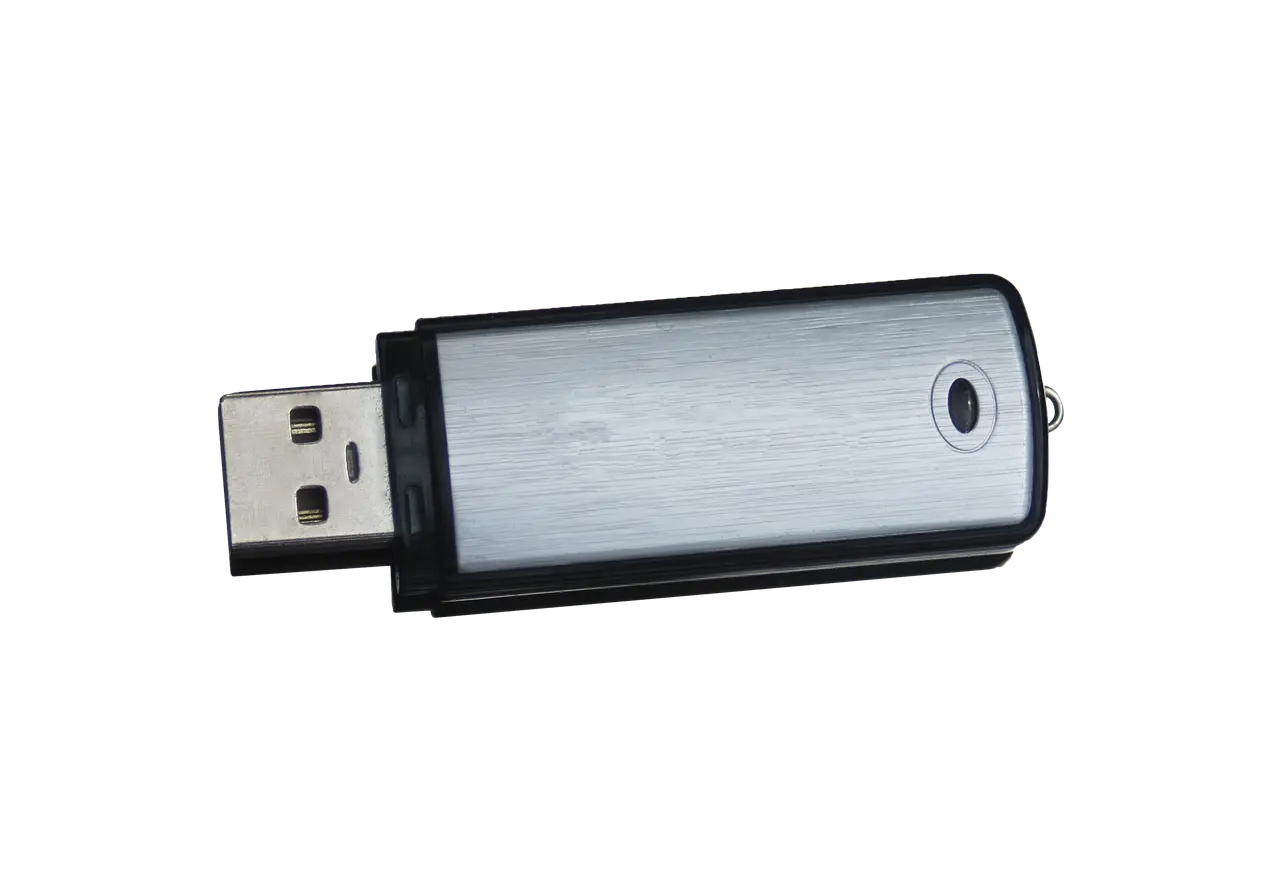
The notification says “USB device not recognized,” and Microsoft’s stated cause is narrow: the device reported a problem, or there is a problem with the device driver. Its own instruction is to find the error code in Device Manager first and then follow the steps for that code, because Code 43, Code 10 and Code 28 each need a different move. Everything below is built into Windows, and no third-party tool is involved at any point. If the trouble began the day you moved to 24H2, note that the update reworked the USB stack and caused fresh detection problems on some newer AMD and Intel chipsets, so installing the latest cumulative and optional driver updates belongs near the top of the list on those systems.
Read the error code before you change anything
The full text of the message on Windows 11 is “The last USB device you connected to this computer malfunctioned, and Windows does not recognize it.” That one line covers several different faults, so identifying which one you have decides everything that follows.
Right-click Start and open Device Manager. The failing device carries a yellow exclamation point, usually under Universal Serial Bus controllers or, for an external drive, under Disk drives. Double-click the device type that has the problem, right-click the device, then click Properties; the code is shown in the Device status box on the General tab.
It helps to know what “not recognized” actually describes. When you plug something in, the device and Windows run a handshake called enumeration. Microsoft’s USB troubleshooting documentation lists what breaks it: a port reset request that times out, a failed Set Address request, or a Device Descriptor or Configuration Descriptor request that fails or comes back malformed. A device that fails this way is left with the hardware ID USB\UNKNOWN and the device ID USB\VID_0000&PID_0000. Windows never learned what the thing is, which is why a different cable or port is worth trying before any driver download.
| What you see | What it means | First move |
|---|---|---|
| “USB device not recognized” notification | The device reported a problem, or its driver has one | Open Device Manager and read the error code |
| Code 43 - “Windows has stopped this device because it has reported problems.” | Windows shut the device down after it reported a fault | Right-click the device, Uninstall, then Action > Scan for hardware changes |
| Code 10 - “This device cannot start. Try upgrading the device drivers for this device. (Code 10)” | The driver could not start the device | Properties > Driver tab > Update Driver |
| Code 28 - “The drivers for this device are not installed.” | The device enumerated, but Windows found no matching driver package | Uninstall and rescan, then check optional driver updates |
An Unknown USB Device entry, hardware ID USB\UNKNOWN | The plug-in handshake failed, so Windows has no idea what it is | Different port, connect directly, known-good data cable |
| Listed in Device Manager, absent from File Explorer | No drive letter, or a new disk that was never initialized | Disk Management > Change Drive Letter and Paths |
Uninstall the device, then let Windows put it back
This costs nothing and is the first thing to try. For Code 43, Microsoft’s recommended action is to right-click the device, select Uninstall, then choose Action on the menu bar and select Scan for hardware changes. Windows re-detects the hardware and reinstalls the driver.
For an external drive, Microsoft’s long-standing version of the same procedure adds a pause: expand Disk drives, right-click the drive, select Uninstall, unplug the USB cable, wait for one minute, then reconnect it, and the driver should load automatically. The same guidance is blunt about hubs: a non-powered USB hub can leave an external hard drive without enough power to operate, so plug it directly into the computer.
Code 10 points at the driver instead. Open the device’s Properties, go to the Driver tab and click Update Driver; Windows then offers to search automatically for a driver or to point it at a driver file you already have. If the driver you want will not go on at all, that is a separate problem with its own signals, and our guide to a driver that will not install on Windows 11 walks through the error strings that tell you why.
Restart, and treat power settings as a test
Restart is not the same as shutting down and switching back on, and the difference matters here. Fast startup is enabled by default, and rather than closing the kernel session at shutdown, Windows hibernates it, saving the kernel session and device drivers to the hiberfil.sys file on disk. Microsoft states plainly that the fast startup setting does not apply to Restart, so Restart is the option that genuinely reloads the USB stack; powering off and back on may hand you the same broken state. The command shutdown /s /t 0 forces a full shutdown if you want one. Microsoft’s guidance is that disabling fast startup is not recommended, and the setting lives under Control Panel > Power Options > System Settings.
USB selective suspend belongs in the same box, with a caveat. It lets the hub driver suspend an individual port without affecting the other ports, and Microsoft’s driver documentation says it is enabled by default and strongly recommends not disabling it. Switch it off only as a temporary test: open Power Options from Control Panel, choose Change plan settings, then Change advanced power settings, and if you see a USB settings section, set USB selective suspend to Disabled. Turn it back on if nothing changes.
Different port, different cable, no hub
Windows has a separate notification for USB-C gear - “The USB device might have limited functionality when connected to this port. Plug the USB device into a different USB port on your PC” - and Microsoft’s stated cause is the device not being on the port that supports its features.
For USB-C, USB4 and Thunderbolt gear, Microsoft’s advice comes down to three moves: connect the device directly to the PC rather than through a hub or dock, use a cable that supports the device’s features (a certified USB4 cable for a USB4 device), and use the port that supports that feature. It also names dust in a USB-C port as a cause of charging failures, cleared with compressed air.
Two practical additions. A charge-only cable is a common reason a phone does nothing at all when plugged in, so test with a cable you know carries data; our notes on moving files between an Android phone and a PC cover the phone-side settings that also matter. If a dock is in the picture and screens are dropping out too, the same direct-connection test applies, as covered in a second monitor that is not detected. Trying the device on a second PC remains the fastest way to tell whether the fault is the device or your machine.
Power is the other variable. The “USB device might need more power” message tells you the PC may not be supplying enough, and to connect the device to external power or try a different PC. Microsoft’s listed causes are a low PC battery, a PC already powering other devices, or an unsupported device, so put a laptop on mains power and disconnect USB gear you are not using.
Reinstall the USB controllers and check optional driver updates
When the whole USB stack is misbehaving rather than one device, reinstalling the controllers is Microsoft’s long-standing reset: in Device Manager, expand Universal Serial Bus controllers, right-click a device, select Uninstall, repeat for each device, then restart the computer. The controllers install again automatically. Do this with nothing unsaved, because a USB keyboard and mouse can drop out until the reboot completes.
Then updates. Run Windows Update as usual, but know that driver updates are not all delivered the same way: Microsoft says outright that optional drivers are not installed automatically. To reach them, select Start > Settings > Windows Update > Advanced options, make sure “Receive updates for other Microsoft products” is turned on, and look under Additional options for Optional updates. Chipset and USB controller drivers often sit there. If nothing appears, the PC or motherboard maker’s support site is the next stop for chipset drivers and firmware. If Bluetooth went quiet at the same time, our guide to Bluetooth not working on Windows 11 covers that side.
When the device shows up but File Explorer does not
If the drive appears in Device Manager without errors yet never turns up in File Explorer, this is not a recognition problem but usually a missing drive letter. Open Disk Management with administrator permissions, right-click the volume and select Change Drive Letter and Paths, then click Change to alter an existing letter or Add for a drive that has none, choose “Assign the following drive letter,” pick one, click OK and confirm.
A genuinely new drive may also need initializing. Open Disk Management by entering “Create and format hard disk partitions” in the Start menu and running it as administrator; if the disk shows as Offline, right-click it and select Online, then right-click and select Initialize Disk. Read Microsoft’s warning first: the initialization process erases all data on the disk, so this is only for a new, empty one. Microsoft also notes that some types of USB drives cannot be initialized at all and are only formatted and assigned a letter. If a drive that held data suddenly shows as empty or unformatted, stop and treat it as a recovery job; our guide to recovering deleted files on Windows explains why writing to it makes matters worse.
One thing not to go looking for: there is no hardware troubleshooter to run. Hardware and Devices is on Microsoft’s list of legacy troubleshooters being removed, and the nine that moved to the Get Help platform cover audio, Bluetooth, camera, printers, networking and the like, but not USB. Work the error code instead: read it, uninstall and rescan, change the port and the cable, restart properly, then update. That order clears most of these before you reach the end of it.
Common questions
Can the Windows 11 24H2 update itself cause “USB device not recognized”?
Yes. The 24H2 update reworked the USB stack and introduced detection problems on some newer AMD and Intel chipsets. Install every pending cumulative update, then check Windows Update > Advanced options > Optional updates for chipset and USB controller drivers before assuming the device or cable is at fault.
What does Code 43 mean for a USB device and how do I clear it?
Code 43 reads “Windows has stopped this device because it has reported problems,” meaning Windows shut the device down after it reported a fault. Right-click the device in Device Manager, select Uninstall, then choose Action > Scan for hardware changes so Windows re-detects and reinstalls it.
Why does my USB device work on another PC but not on this one?
That points at the port, power, or driver on your machine rather than the device itself. Try a different port directly on the PC, use a known-good data cable instead of a charge-only one, and reinstall the Universal Serial Bus controllers in Device Manager.
My USB drive appears in Device Manager but not in File Explorer, so why is that?
The drive usually has no drive letter, or it is a new disk that was never initialized. Open Disk Management, right-click the volume, choose Change Drive Letter and Paths, and assign a letter; a brand-new drive may also need to be brought Online and initialized first.