Android Phone Not Charging
Why an Android phone refuses to charge, and the fixes Google and Samsung actually document: lint in the port, moisture warnings, thermal limits, battery caps.
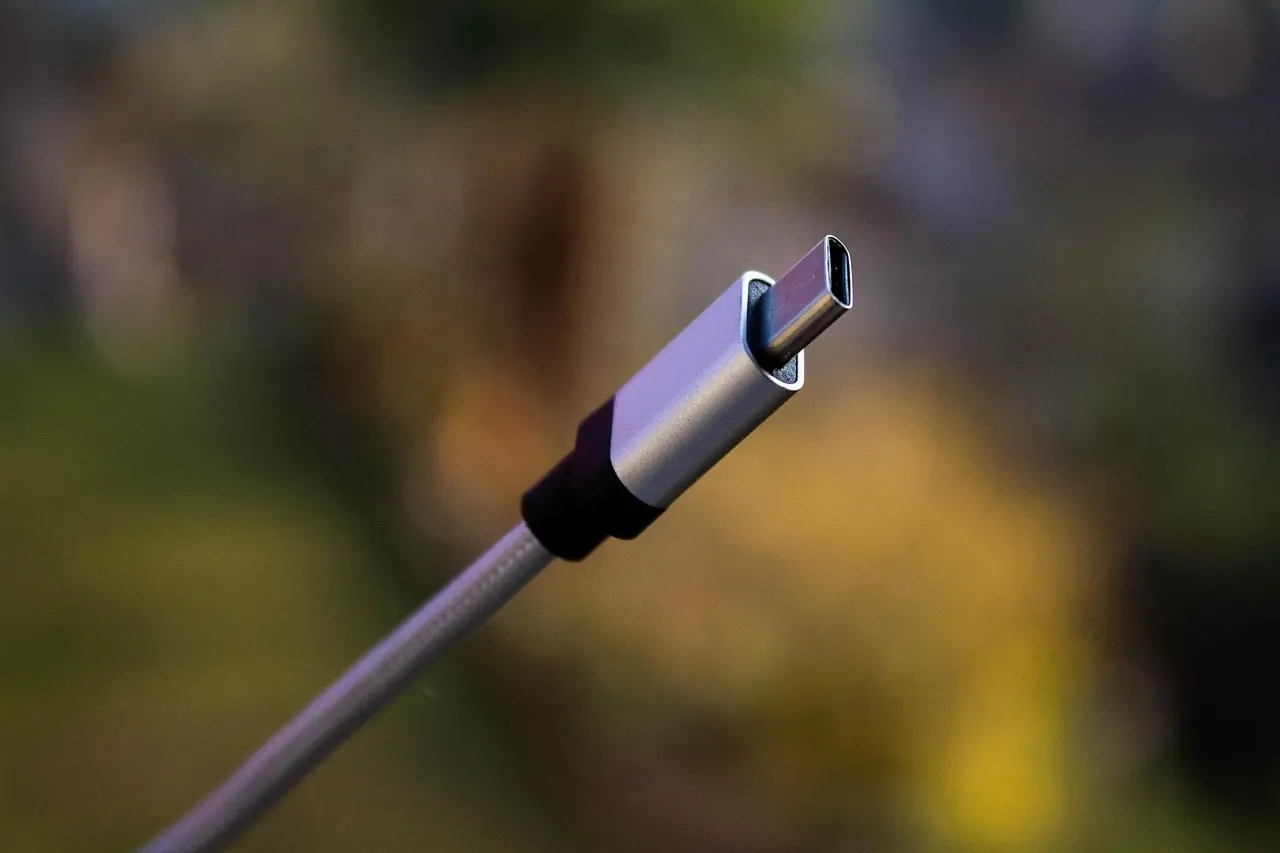
When an Android phone stops charging, the cable, the adapter and the port are where both Google and Samsung tell you to look first — not the battery. Both start the same way: test that adapter and cable on another device, check the cable is seated firmly at both ends, and check that nothing is sitting in the phone’s port “like dust or lint.” If the phone is flat, leave it on a known-good charger for an hour before you conclude anything is broken. And before you blame the charger at all, check whether a phone parking at 80% is simply obeying a setting: on a Galaxy running One UI 8, Battery protection now offers just Basic and Maximum, where Maximum caps charging at 80%, Samsung having folded the old Adaptive mode into Basic.
| Symptom | Likely cause | What to do |
|---|---|---|
| Nothing on screen after 10+ minutes | Dead-flat battery, or a failed cable or adapter | Known-good cable into a wall outlet, wait 30-60 minutes, force restart while plugged in |
| “Check charging accessory” on a Pixel | Unsupported or broken cable or adapter | Swap to a PPS adapter rated 30W or more, or another USB PD adapter rated 15W or more |
| Water-drop icon or “Liquid or debris” | Moisture or debris in the port or the cable; humidity alone can trigger it | Dry the port, try another cable, charge wirelessly meanwhile |
| Charges only at one angle; cable feels loose | Lint packed in the port, or worn contacts | Flashlight check and a port-down tap, then a repair |
| Stops at 80% or 85% | A battery-protection setting, not a fault | Change the setting, not the charger |
| Slows or pauses when the phone is warm | Thermal limiting | Cool it down and stop using it while it charges |
| Charges fine but dies in hours | A worn cell | Check whatever battery health readout your model offers |
Start With the Cable, the Adapter and the Outlet
Google’s Pixel charging troubleshooter leads with those checks because they cost nothing and settle whether the phone is even at fault. Test from a wall outlet: Google notes that other power sources such as laptops “can sometimes charge slower,” and Samsung says a computer’s USB port supplies lower voltage than a proper charger.
The adapter matters more than people expect. Google’s charging page lists, for Pixel, a Google 30W, 45W or 67W USB-C charger, any Programmable Power Supply (PPS) adapter rated 30W or more, or another USB Power Delivery (PD) adapter rated 15W or more, and warns that “other cables and power adapters might not work with Pixel phones.” USB-A to USB-C charges more slowly than USB-C to USB-C. Samsung’s 25W fast charging needs a charger meeting PD3.0 PPS 3.3V~11V/2.25A or higher, with its switch in Settings > Battery (called Battery and device care on some One UI versions). A Pixel showing “Check charging accessory” is saying the cable or adapter “may not be supported by your phone or it might be broken.”
Look Inside the Charging Port
Samsung is blunt about this one: “Dust or foreign material inside the charging port is one of the most common causes of charging issues.” Inspect it with a flashlight, gently blow air in, and check that the connectors are not corroded, bent, broken or pushed in. Google’s step for a Pixel is to hold the phone with the port facing down and tap it gently against your hand.
Samsung adds a useful tell: the cable “should be secured firmly in the charging port with very little mobility.” One that wobbles, or only charges at a particular angle, points at packed lint or worn contacts. Neither vendor documents digging in with a tool, and the port is a row of small metal contacts that a metal object can bridge. A port that looks burned, melted or corroded is a repair, not a cleaning.
Moisture, Debris and “Unplug Charger” Warnings
A phone refusing to charge while showing a warning is usually blocking itself on purpose. Pixel shows “Unplug charger” or “Liquid or debris in USB port” when the port or cable overheats, or when it detects liquid or debris. Google’s steps: unplug the adapter from the wall, let the phone cool a few minutes, remove the cable. If it is wet, turn the phone off and dry it flat at room temperature; if there is debris, hold it port-down and tap gently. Wait for “OK to use USB port” before plugging in again.
Samsung’s water-drop icon works the same way. Unplug, wipe with a dry cloth or gently shake the phone 5-10 times with the port facing down, air-dry it in a ventilated spot or with a fan, and restart only once it is dry. Samsung warns that “excessive force or shaking may cause damage to your phone.” Two details save guessing: the warning appears “even if your phone did not come into contact with water,” because humidity alone can trigger it, and the moisture may be in the cable, so try another one. If your phone supports wireless charging, it still works meanwhile. If the icon will not clear, Samsung documents opening Settings > Apps, showing system apps, and clearing the cache on USB Settings. Google says to contact support if “Unplug charger” keeps repeating or “Liquid or debris” persists two hours or more. No vendor page recommends rice.
Force Restart, Then Leave It on the Charger
Force restart with the phone still plugged in. The combination differs by brand, and this is where generic advice goes wrong.
| Phone | Force restart | Safe mode |
|---|---|---|
| Pixel | Hold Power for about 35 seconds | Pixel 6 and later: hold Power + Volume Up, then touch and hold Power off or Restart and tap OK |
| Samsung Galaxy | Hold Volume down + Side until the screen goes black and the logo appears | Power off, power on, then hold Volume down at the logo until “Safe mode” shows at the bottom left |
| Google’s generic Android step | Plugged in, hold Volume down + Power for at least 20 seconds | Google says the route “varies by phone” and sends you to the manufacturer’s site |
The Pixel power menu uses Volume Up while Samsung uses Volume down. They are not interchangeable.
Then wait. Google says to check a deeply drained phone after about a minute on a charger: a battery icon means it is off but charging, and if your phone has a charging light showing solid or flashing red, it needs 30 minutes or more before a restart attempt. Google notes that “a device with a very low charge will charge for several minutes before allowing the screen to power on.” Samsung’s figure for a fully depleted battery is at least an hour, with the indicator taking “up to 10 minutes to appear.” If the screen stays dark, a phone that will not turn on covers what is left.
It May Be Charging Fine, or Just Too Warm
A phone that parks at 80% is usually obeying a setting. On a Galaxy running One UI 6.1 or later, Settings > Battery > Battery protection offers Basic (stops at 100%, resumes at 95%), Adaptive (uses the maximum overnight and charges to 100% about an hour before you wake) and Maximum (stops at 80%). Below One UI 6.1, Samsung says “the only option to extend the lifespan of your battery is to limit the maximum charge to 85%,” so those two numbers belong to different versions. Pixel keeps its caps at Settings > Battery > Battery health > Charging optimization: Adaptive Charging (Pixel 4a and later) and Limit to 80% (Pixel 6a and later).
Heat explains most of the rest. Google’s Pixel safety guide says not to use or charge the device at ambient temperatures lower than 0°C (32°F) or higher than 35°C (95°F), and Google notes a Pixel limits itself to roughly 70-80% after hours of continuous charging in high temperatures. Samsung says charging may stop or slow when the phone or the room is too hot or too cold, and can stop entirely in something like a hot car. The same Google guide warns against sleeping on a phone, adapter or wireless charger, or putting one under a blanket or pillow while it is connected to power, which “can result in personal injury or fire.” If the phone runs warm all day, why your phone gets hot works through the causes.
Wireless charging doubles as a test. If the phone charges on a Qi pad but not by cable, the fault is the cable or the port. If wireless is the flaky one, Google’s fixes are to remove metallic or magnetic accessories such as ring holders, MagSafe attachments and PopSockets, center the phone, take the case off, and let it cool.
Rule Out an App, Then Check the Battery
Samsung suggests safe mode specifically for charging faults: if fast charging works there, uninstall recently added third-party apps one at a time, restarting normally after each. Google’s own page says restarting in safe mode “varies by phone,” so use the route above for your brand.
If charging works but the phone dies within hours, the cell is the suspect, and what you can see depends on the model. On Pixel 8a and later, Settings > Battery > Battery health reads Normal or Reduced, where Reduced means reached capacity has fallen below 80%, and Settings > About phone > Battery information shows the cycle count. Google explicitly says Pixel 6a, 7, 7 Pro, 7a, 8, 8 Pro and Pixel Tablet do not show it. On a Galaxy, the Samsung Members app has the equivalent under Support, then Phone diagnostics, then Battery status, reporting Normal, Weak or Bad where it is available. Google suggests a new battery below 80% capacity, or around 800 charge cycles for Pixel 3 through 8 Pro and Fold and around 1000 for Pixel 8a and later. If the phone drains rather than refuses to charge, Android battery draining fast is the closer match, and phone battery charging myths handles the full-drain “recalibration” idea that no vendor charging document supports.
Some findings end the troubleshooting. Google says not to use a device with a damaged enclosure, a cracked screen or other physical damage, since that “may cause overheating or injury.” On a Galaxy, the Liquid Damage Indicator in the SIM tray should be white, or white with pink or purple X marks; solid pink, purple or red means liquid exposure. A swollen battery, or a phone too hot to hold while charging, goes to a technician.
Work in that order and the cheapest checks come first: a different cable into a wall outlet, a flashlight in the port, an hour of patience with a flat battery. Keep a known-good cable and adapter where you can reach them, because the fastest way to tell a dead phone from a dead cable is a second cable. If the laptop at the other end is the real problem, a laptop battery that will not charge follows the same logic.
Common questions
Why does my phone stop charging at 80%?
That’s almost always a battery-protection setting, not a fault. Samsung’s Maximum battery protection and Pixel’s “Limit to 80%” both cap charging on purpose to slow battery aging, so turn the setting off if you want a full 100%.
What does “Check charging accessory” mean on a Pixel?
It means the cable or adapter may be unsupported or broken. Swap to a PPS adapter rated 30W or more, or another USB Power Delivery adapter rated 15W or more, with a good USB-C cable, and test the pair on another device.
Why does my phone show a moisture or water-drop icon when it isn’t wet?
Both Google and Samsung note the warning can appear from humidity alone, or from moisture in the cable rather than the phone. Unplug, dry the port, and try a different cable; charge wirelessly meanwhile if your phone supports it.
Should I put a wet phone in rice to fix charging?
No. No vendor recommends rice, and dust from it can lodge in the port. Turn the phone off, dry it flat at room temperature or with a fan, and wait for the “OK to use USB port” message before charging.