How to transfer files between Android and PC
Move photos, documents, and large files between an Android phone and a Windows PC using a USB cable, Phone Link, cloud, or Quick Share.
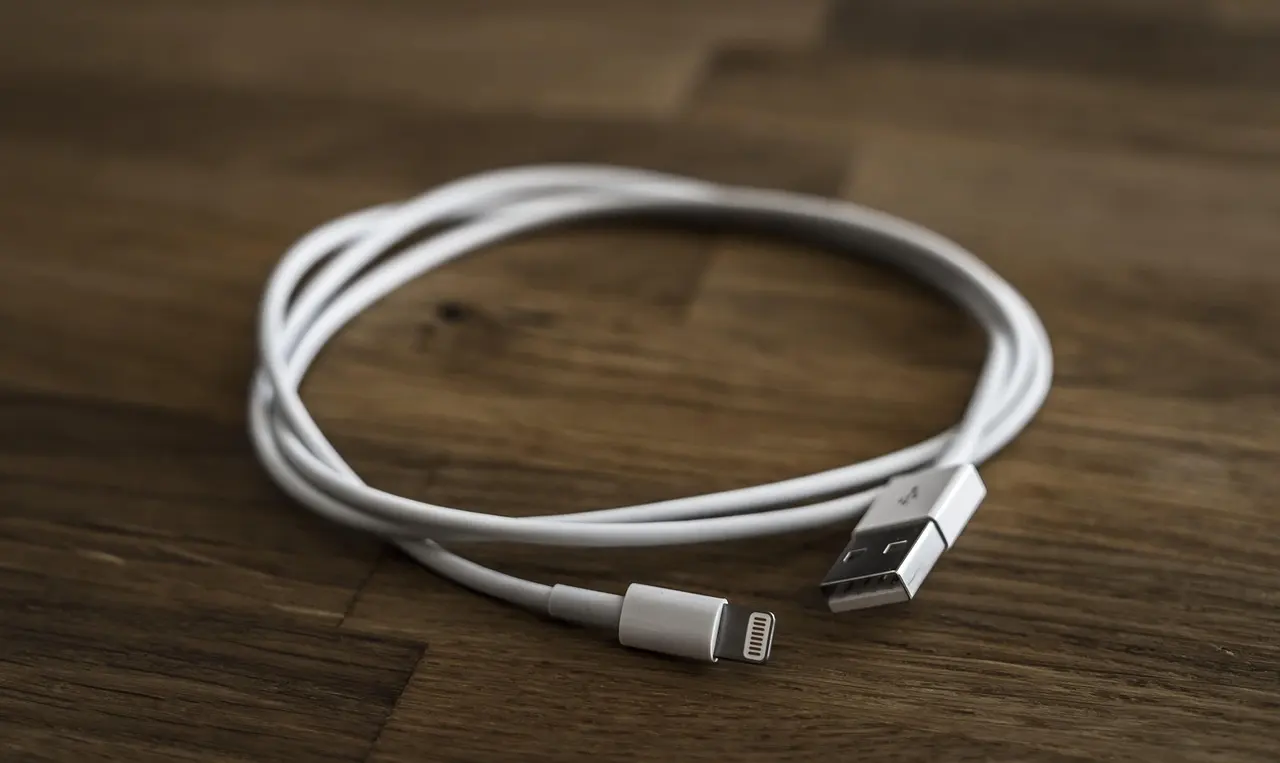
Moving files between an Android phone and a Windows PC comes down to picking the right tool for the job: a USB cable for a one-time bulk copy, Microsoft’s Phone Link for quick wireless grabs, cloud storage when you want the file in two places at once, and Quick Share or Bluetooth when no cable is handy. This guide covers each method, what it needs, and where your files end up — so a folder of vacation photos and a single PDF don’t get the same treatment. One thing to expect on Android 16: plugging in still opens as charging only, so before File transfer works you have to tap the USB notification and switch it, a step both a Pixel and a Galaxy require.
Pick the method that fits what you’re moving
Start with what you’re actually transferring. A hundred full-resolution photos and one spreadsheet call for different tools, and the wrong choice either wastes time or quietly compresses your files.
| Method | Best for | What you need |
|---|---|---|
| USB cable (File transfer) | Large batches, full-quality photos and video | A USB data cable and a free port |
| Phone Link | A few recent files or photos, no cable | Windows 10 or 11, the Link to Windows app, same Wi-Fi |
| Google Drive / Photos | Keeping a copy in two places, sharing a link | A Google Account and a connection |
| Quick Share | Fast wireless transfer of several files | Bluetooth on, Wi-Fi, the Quick Share PC app |
| Bluetooth | One or two small files when nothing else works | Bluetooth paired on both devices |
USB cable: the “File transfer” (MTP) mode
A cable is still the fastest way to move a lot of data, and it doesn’t touch your cloud storage or your monthly data. Plug the phone into the PC with a cable that carries data — some cheap cables only charge — then unlock the phone. Pull down the notification shade and tap the USB notification, which usually reads something like Charging this device via USB, and choose File transfer (also labeled MTP). The phone then appears in File Explorer as a drive; open it and drag files in either direction. When you’re done, eject the phone in Windows before unplugging so nothing is left mid-copy.
These steps follow Google’s guide to transferring files between your computer and Android device. If the phone only shows up as charging and no drive appears, the USB mode wasn’t switched — reopen that notification and select File transfer again.
This is the method to reach for when you want photo and video originals rather than compressed copies, and the practical way to clear a big media library when you’re freeing up storage on your phone.
Phone Link: wireless transfers on Windows
If reaching for a cable is the friction, Microsoft’s Phone Link handles small transfers over Wi-Fi. Set it up once: open the Phone Link app on the PC — it’s built into Windows 11 and available on Windows 10 — install the Link to Windows app on the phone, and sign both into the same Microsoft account. After that you can send a file straight from one device to the other.
- PC to phone: right-click the file, choose
Share, and pick Phone Link. It lands in the phone’sDownloads > Sent from your PCfolder. - Phone to PC: tap
Shareon the file and chooseLink to Windows – Send to PC. It arrives in theDownloads\Phone Linkfolder on the computer.
Two limits are worth knowing, both from Microsoft’s guide to seamlessly transferring content between your devices: only files saved on the device transfer, so a cloud file sends a link rather than the file itself, and drag-and-drop on supported phones caps at 100 files with no single file over 512 MB. Both devices also have to be on the same Wi-Fi network. Phone Link is built for convenience, not for dumping a 40 GB video folder — use a cable for that.
Cloud: Google Drive and Google Photos
Cloud transfer has a side benefit: the file ends up in two places, which is really a backup. It works best when you want the same document on your phone and your laptop, or need to hand a file to someone else.
- Google Drive: on the phone, open Drive, tap the plus button, and upload the file. On the PC, go to
drive.google.com, clickNew, thenFile upload, following Google’s steps for uploading files and folders to Drive — then download it from the same page on the other device. - Google Photos: if Photos backup is already on, your pictures are uploaded automatically. On the PC, open
photos.google.com, select the images you want, and useDownload.
Because a cloud copy is a genuine second copy, this doubles as part of a wider habit of backing up your files properly and backing up your Android phone. The trade-off is speed and space: large video files eat free cloud storage quickly, and every upload depends on your connection, so the cloud suits documents and photos better than a stack of 4K clips.
Wireless without a cable: Quick Share and Bluetooth
When both the cable and Phone Link are out, two built-in options remain. Quick Share (formerly Nearby Share) moves files phone-to-phone, and phone-to-PC once you install the Quick Share app on Windows. Turn on Bluetooth, open a file, tap Share, then Quick Share, and pick the target device; received files land in the Download > Quick Share folder. You control who can find you with a visibility setting — Your devices, Contacts, or Everyone for 10 minutes, which reverts on its own. Per Google’s Quick Share guide, it needs Bluetooth and runs on Android 6 and later.
Bluetooth on its own still works for a photo or two, but it is slow and best kept for the moment when nothing else is available. Knowing where each tool drops your files saves a hunt afterward:
| Method | Where transferred files land |
|---|---|
| USB File transfer | Wherever you drop them (often the phone’s Download or DCIM folder) |
| Phone Link (PC to phone) | Downloads > Sent from your PC |
| Phone Link (phone to PC) | Downloads\Phone Link |
| Quick Share | Download > Quick Share |
For a single photo, Quick Share or Phone Link is done in seconds. For a full camera roll or a year of video, plug in the cable and copy the originals at full quality. And when the files genuinely matter, let the cloud keep the second copy, so a lost phone never turns into lost photos.
Common questions
What is the fastest way to move a full camera roll from Android to a PC?
A USB data cable in File transfer mode is fastest and keeps photos and video at full quality. Plug in, tap the USB notification, choose File transfer, then drag the DCIM folder to the PC in File Explorer.
Can I send files without a cable on Windows 11?
Yes. Microsoft’s Phone Link moves small batches over Wi-Fi once both devices sign into the same Microsoft account, and Quick Share does the same after you install its Windows app. Both suit a few files rather than a 40 GB folder.
Where do files sent by Phone Link and Quick Share end up?
Phone Link drops PC-to-phone files in Downloads, Sent from your PC, and phone-to-PC files in the Downloads, Phone Link folder. Quick Share files land in Download, Quick Share.
On Android 16, why does my phone only charge when I plug it into the PC?
The USB mode defaults to charging on every connection. Unlock the phone, open the USB notification, and pick File transfer; to stop repeating it, set Default USB configuration to File transfer in Developer options.