Android Battery Draining Fast? How to Fix It
Fast battery drain on Android usually traces to a few apps and settings. Find the culprit in Battery usage, then rein in background apps, screen, and location.
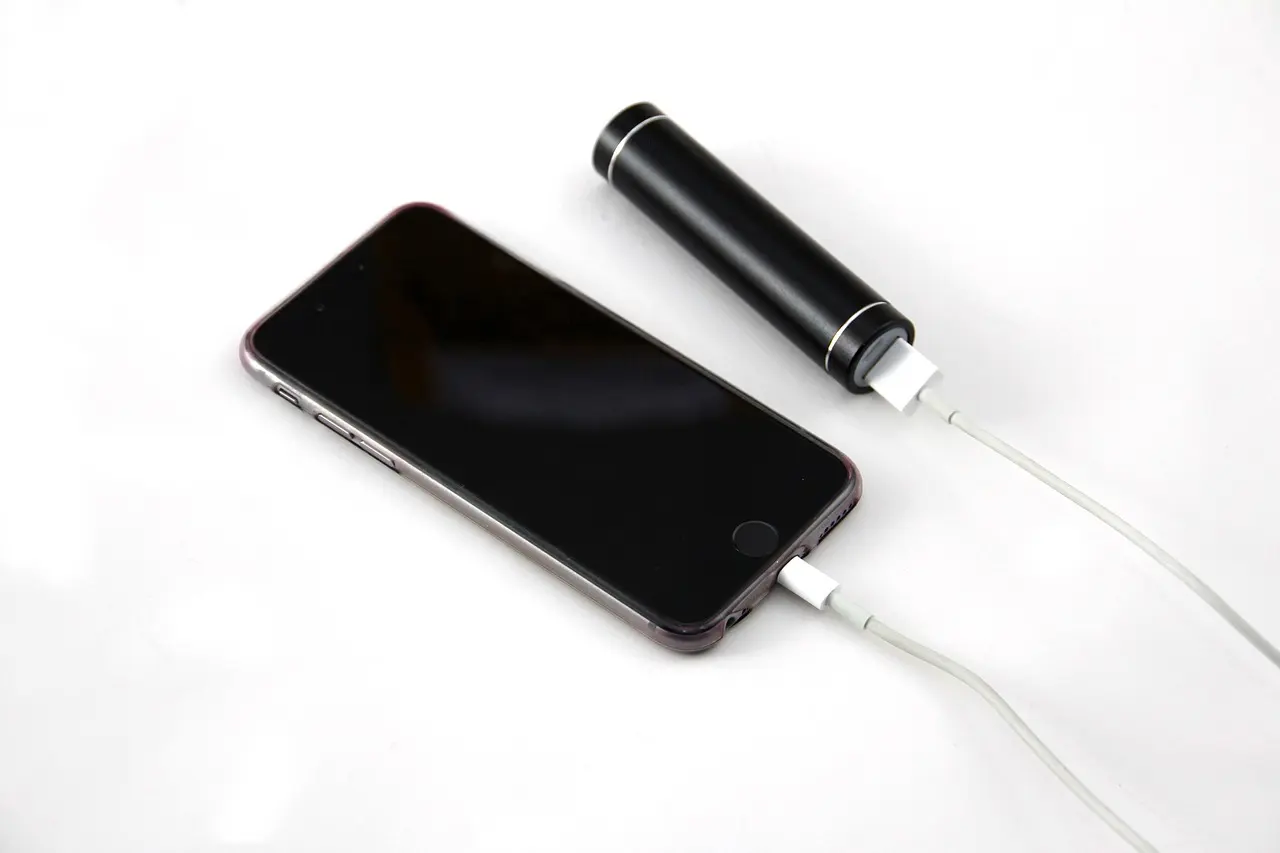
A phone that dies by mid-afternoon almost always has one or two specific causes, and Android will tell you what they are. Open Settings > Battery > Battery usage to see which apps drained the most, then restrict the worst offenders and tighten a few display settings. If the drain started the day your Galaxy moved to One UI 8, you are not alone: heavy drain was widely reported after the September 2025 rollout and Samsung pulled and re-issued some builds over it, so check Software update for a patch and expect a day or two of higher drain while any Android 16 update re-indexes.
Find what is actually draining the battery
The battery usage list ranks apps by power used since your last charge: on a Pixel under Settings > Battery > Battery usage, on Samsung under Settings > Battery. Watch for an app you barely touched sitting near the top. Tap it and set background use to Restricted (Pixel) or turn off Allow background activity (Samsung).
Tame the screen, your biggest power user
The display drains more than anything else. Turn on Adaptive brightness and drag the slider lower than feels natural. Shorten Screen timeout to 30 seconds, and if you use Always-on display, turning it off is one of the biggest single wins.
| Setting | Where to find it | Why it helps |
|---|---|---|
| Adaptive brightness | Display > Adaptive brightness | Dims the screen automatically in low light |
| Screen timeout | Display > Screen timeout | Stops the screen staying lit when idle |
| Always-on display | Display or Lock screen settings | Frees pixels that otherwise stay lit all day |
| Battery Saver | Battery > Battery Saver | Caps background work to stretch a low charge |
Cut background location and activity
An app that checks your location all day is a steady, quiet drain. Under Settings > Location > App location permissions, switch anything that does not need constant tracking to Allow only while using the app. Weather, shopping, and social apps rarely need it always on. For more, our guide to speeding up a slow Android phone covers the same background apps.
Let Android manage power for you
Adaptive Battery learns your habits and limits apps you rarely open, so leave it on. Battery Saver caps background activity; Android reminds you to switch it on at 20 percent and again at 10 percent, or you can set it to turn on automatically at a level you choose. For a repeatable routine, see our walkthrough on saving battery on Android.
When the drain is sudden: a bad app or a dying battery
If the drain started overnight, look at what changed. A newly installed or just-updated app is the usual suspect, so force-stop or uninstall it and watch for a day. If nothing stands out and the phone runs hot, shuts down with charge left, or the back feels swollen, the battery is likely aging and worth a service check.
Start with the battery usage screen; it points at the real cause. Fix the top two or three items, give it a day, then check again. A phone low on space works harder too, so freeing up storage on Android helps.
Common questions
Why is my battery draining fast after the One UI 8 update?
Many Galaxy owners reported heavy drain right after the September 2025 One UI 8 rollout, and Samsung temporarily pulled some builds and re-issued them. Check Settings > Software update for the latest patch, and give the phone a day or two, since any big update runs hotter briefly while it re-indexes apps and media in the background.
My Pixel battery drains fast after Android 16. What should I check first?
Open Settings > Battery > Battery usage and look for an app you barely touched sitting near the top, then tap it and set background use to Restricted. A newly updated or newly installed app is the usual cause, so watch it for a day after restricting or removing it.
Does a phone that keeps losing signal drain the battery faster?
Yes. In a weak-coverage area the phone keeps boosting its radio to hunt for a tower, which is a steady, quiet drain. Moving to better coverage or setting the preferred network type to LTE/4G eases the search and the drain that comes with it.
Why does my phone get hot and lose charge quickly even when idle?
A background app stuck awake with a wake lock keeps the processor running, so check Battery usage and force-stop the top offender. If the phone still runs hot, shuts down with charge left, or the back feels swollen, the battery is likely aging and worth a service check.