Mobile Data Not Working on Android
Android mobile data dead? Rule out Wi-Fi first, then check the on-device data limit, Data Saver, SIM choice, APN and VPN before resetting network settings.
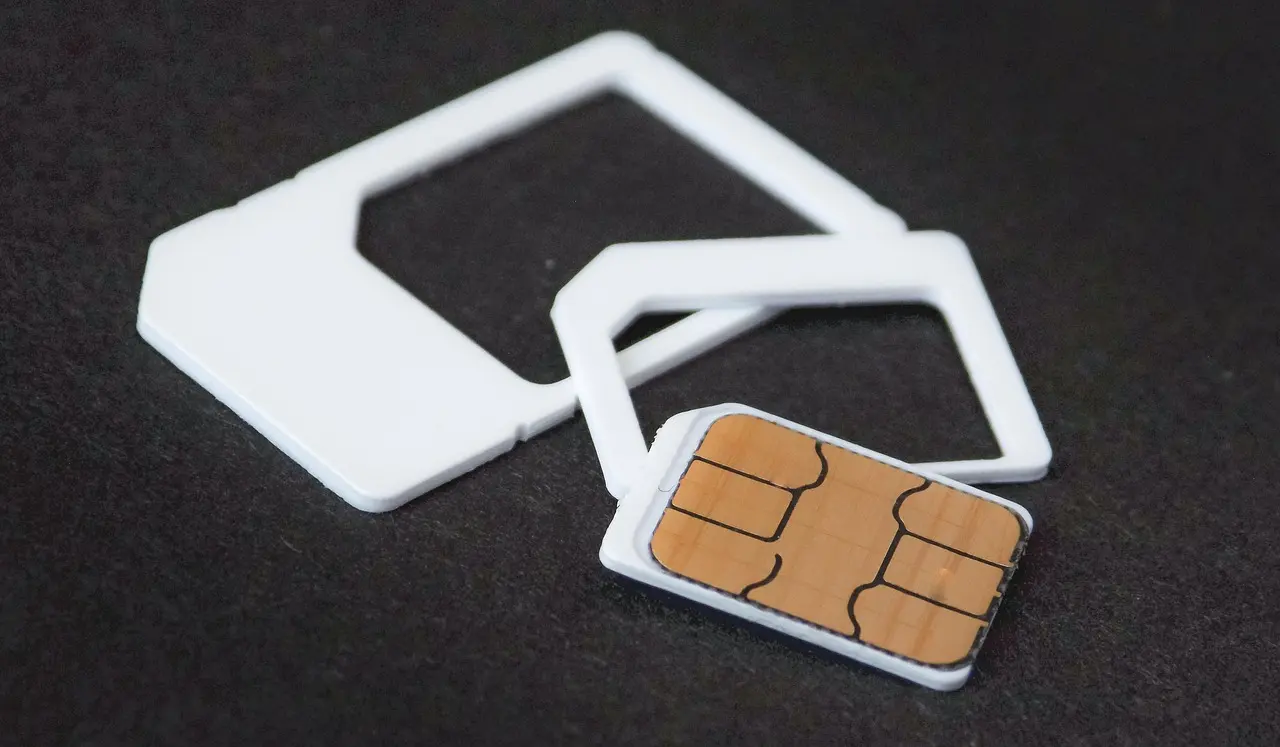
When mobile data stops working, the first move is to rule out Wi-Fi: turn Wi-Fi off and see whether the phone finds a signal on its own. If it does not, cycle airplane mode for about 10 to 30 seconds, then power the phone all the way off for 30 seconds. If data is still dead after that, the cause is usually a setting rather than a fault — an on-device data limit, Data Saver, the wrong SIM chosen for data, or a VPN sitting in the way. The one exception worth checking early: if data died the day your phone updated to Android 16 or One UI 8, a bad network state left by the upgrade is a common trigger, and on both Pixel and Samsung a network-settings reset clears it faster than testing each setting in turn.
Confirm it is really mobile data
Google’s Pixel troubleshooting steps start by taking Wi-Fi out of the picture: open Settings > Network & Internet > Internet and turn Wi-Fi off, then look at the signal triangle in the top right corner. A phone parked on a saved Wi-Fi network that has no working internet looks exactly like broken mobile data, because nothing is touching the cellular radio at all.
If no signal indicator appears, you may simply be in an area without coverage. Google also lists physical obstruction as a genuine cause: buildings, walls and some phone cases can interfere with mobile service, including 5G. Step outside and take the case off before you start changing settings.
Then restart the phone — the first item on Android Help’s own list, and it sounds too simple until it works. If a normal restart changes nothing, turn airplane mode on and back off (Android Help says wait 10 seconds, Google Fi’s page says 30), and if that fails, power the phone fully off, wait 30 seconds, and turn it on again.
Menu paths differ, so match the wording, not the route
There is no single path that fits every Android phone, and Google does not pretend otherwise. Its own troubleshooting page writes the step as Settings, then “Network & internet” or “Connections”, then “Mobile data” or “Cellular data”, and adds: “On some devices, you may need to select Data usage before you find this.”
The table below covers the two skins whose makers document these paths themselves. Other skins — Xiaomi, OnePlus, Motorola — arrange the same settings their own way, so hunt for the wording rather than the route.
| What you’re checking | Pixel / stock Android | Samsung One UI |
|---|---|---|
| Mobile data on/off | Network & internet > SIMs | Quick panel tile, or Connections > Data usage |
| Data Saver | Network & internet > Data Saver | Connections > Data usage > Data saver |
| Data limit | Network & internet > SIMs > Data warning & limit | Connections > Data usage > Mobile data usage > settings icon > Set data limit |
| APN | Network & internet > SIMs > Access point names | Connections > Mobile networks > Access Point Names |
| Reset network settings | System > Reset options > Reset mobile network settings | General management > Reset > Reset network settings |
| Check for updates | System > Software updates | Settings > Software update |
A data limit you set months ago can switch data off
This is the one that catches people. Android’s Data limit is not a warning — when you reach it, mobile data turns off automatically and you get a notification. The separate Data warning only notifies; it never cuts anything off. The documented way to get data back is to return to that same screen and turn the limit off.
On Pixel it sits under Network & internet > SIMs > Data warning & limit. On Samsung it is in Connections > Data usage > Mobile data usage, behind the settings icon, where “Set data limit” sits alongside the billing-cycle start day. If data died partway through the month and has stayed dead since, check this before anything else.
Data works, but one app is offline
If web pages load and one app does not, the radio is fine and something is starving that app.
- Data Saver. It lets most apps get background data only over Wi-Fi, while currently active apps and services can still use mobile data. So it looks like an app that never updates in the background, not a phone with no data. A Data Saver icon shows in the status bar when it is on, and both skins keep an exception list: “Unrestricted data” on Pixel, “Allowed to use data while Data saver is on” at the bottom of Samsung’s Data saver screen.
- A per-app background-data restriction. On Samsung: Connections > Data usage > Mobile data usage, tap the app, and check “Allow background data usage”. Google documents three different paths for this depending on Android version, which is a good reason to search Settings by name rather than trust a route you read somewhere.
- Battery Saver. Google’s description is that apps don’t run in the background while it is on, unless you turn off battery optimization for them, and Extreme Battery Saver pauses most apps outright — paused apps won’t send notifications. The per-app fix is Settings > Apps > the app > Battery > Unrestricted.
If it is the Play Store that won’t move, downloads stalling in the Play Store have their own set of causes. If apps are connecting but staying quiet, notifications not showing on Android goes further into the battery-restriction side.
SIM, roaming, network type and APN
- Dual SIM. Only one SIM can be the default for data. On Pixel you set it under Network & internet > SIMs, then under “Your primary SIMs” tap “Mobile data”; there is also an “Ask every time” option, so confirm which SIM is actually carrying data. If a SIM is inactive, open it and turn on “Use SIM” (worded “Use this SIM” on some builds).
- Roaming. Google defines the roaming switch as letting your phone send data over other carriers’ networks when you leave your carrier’s coverage. If the phone has landed on a partner network, turning roaming on is worth a test — with an eye on what your plan charges for it.
- Preferred network type. Samsung calls it Network mode, under Connections > Mobile networks. Which options appear depends on the phone, carrier and SIM, and some carriers hide or lock the menu. No vendor doc says 5G causes data failure, but switching type and watching what changes costs nothing.
- Network operator selection. Samsung documents manual selection as something you can undo: under Mobile networks, put the automatic-selection switch back on rather than leaving the phone pinned to one operator.
- APN. The access point name is the set of details your carrier needs to connect you, and a wrong one stops data from working. It is what people damage by hand after a SIM swap or a carrier change, so don’t copy values off a forum. On Samsung, open Access Point Names, use the three-dot menu and choose Reset to default; for real values, ask your carrier. Google does not document a matching reset button on Pixel.
Full bars, but nothing loads
A VPN is a documented cause of exactly this: a connection that looks live and carries nothing. Check Settings > Network & internet > VPN — you can search Settings for “VPN” if you can’t find it — and turn it off to test. Security and ad-blocking apps can be holding one open too. If that turns out to be it, setting up a VPN properly covers reconnecting afterward.
While you are in there, set Private DNS back to Automatic. Google documents three states — Off, Automatic, and a provider hostname — and while a mistyped hostname isn’t a listed cause here, it takes five seconds to rule out.
If you suspect a downloaded app, restart in safe mode, which temporarily turns off all downloaded apps. Google deliberately declines to publish a key combination for that, so check your manufacturer’s support site for yours. Then check for a system update — Samsung lists updating as its first step for mobile data problems.
Resetting network settings is the last thing to try on the phone itself. Its name varies: newer Pixels split out “Reset mobile network settings”, while other builds offer one combined “Reset Wi-Fi, mobile & Bluetooth”. Either way it clears saved Wi-Fi networks and Bluetooth pairings as well, so expect to retype your Wi-Fi password and pair your Bluetooth accessories again.
| Symptom | Likely cause | First thing to try |
|---|---|---|
| No bars, no data icon | Coverage, or the radio is stuck | Airplane mode off and on, then power off 30 seconds |
| Full bars, nothing loads | VPN, Private DNS or APN | Turn the VPN off, set Private DNS to Automatic |
| Died mid-month, still dead | On-device data limit | Turn the data limit off |
| Only one app is offline | Data Saver or a background restriction | Add the app to unrestricted data |
| Broke after a SIM or carrier change | APN or provisioning | Reset the APN to default, then call the carrier |
| Broke right after a system update | Bad network state | Reset network settings |
When it is the carrier, not the phone
Google’s own troubleshooting ends at the carrier, and yours should too: call to check for an outage in your area and confirm nothing has changed on your plan. Samsung says the same, and adds that if you recently changed carriers but kept the phone, the new carrier may need to reset the device on their side.
Two hardware notes. The FCC’s guidance on unlocking is that a phone built for one provider’s network may not be technologically compatible with another’s, unlocked or not. And when US carriers retired their 3G networks, the shutdown also affected some older 4G phones that do not support VoLTE; the FCC’s advice is to ask your provider whether a particular device is affected. No vendor lists a factory reset as a fix here, so treat a full factory reset as a last resort, after the carrier has ruled out their side.
Work in that order and most cases close out in a couple of minutes: rule out Wi-Fi, restart, then check the four settings that quietly turn data off — the data limit, Data Saver, which SIM is set for data, and any active VPN. Save the network reset for what survives all four, and the carrier call for what survives the reset.
Common questions
Why did my mobile data stop working after the Android 16 update?
A major update can leave the network stack in a bad state or reset the APN. Reset network settings — on Pixel under Settings > System > Reset options, on Samsung under General management > Reset — then confirm the right SIM is set for data. The reset also clears saved Wi-Fi networks and Bluetooth pairings, so expect to re-add them.
My phone says it is connected but nothing loads. What is it?
A VPN or a mistyped Private DNS is the classic cause of a connection that looks live but carries nothing. Turn the VPN off under Settings > Network & internet > VPN to test, and set Private DNS back to Automatic while you are there.
Mobile data died in the middle of the month and never came back. Why?
You most likely hit an on-device data limit, which turns mobile data off automatically once you reach it, unlike a data warning, which only sends a notification. Return to the data-limit screen for that SIM and switch the limit off to bring data back.
One app has no data but everything else works. How do I fix it?
Data Saver or a per-app background restriction is starving that one app while the radio itself is fine. Add the app to the unrestricted list on your Data Saver screen, and set it to Unrestricted under Settings > Apps > the app > Battery.