Fingerprint Sensor Not Working on Android
Fingerprint failing on your Galaxy or Pixel? Work through screen protectors, finger and sensor condition, Android's deliberate PIN prompts, and the hardware check.
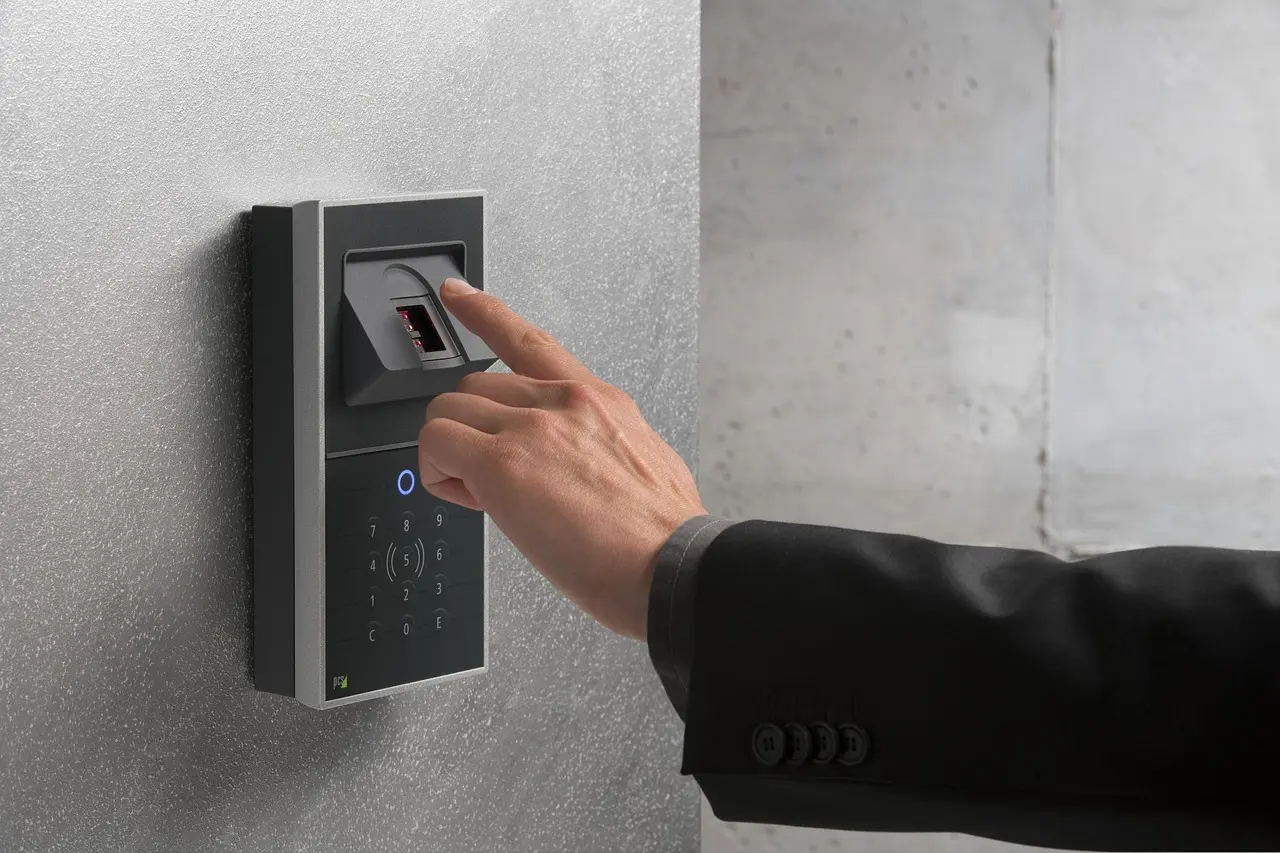
Most fingerprint failures on Android are not a broken sensor. The three usual causes are a screen protector that went on after the print was enrolled, the condition of your finger and the glass, and Android deliberately refusing biometrics until you enter your PIN. Wipe the screen, dry or moisturize your finger, then press firmly and hold until the phone unlocks — and if the trouble started the day a new protector went on, delete that fingerprint and enroll it again through the protector. Re-enrollment now differs by brand: a Pixel has you lift and reposition the same finger, while a Galaxy on Android 16 and One UI 8 switched to a swipe-style capture, so a print registered before that update can read worse until you enroll it again.
Start with the screen protector
Both Google and Samsung name this first in their own troubleshooting. Samsung says to use only Samsung-certified protectors, because “an uncertified screen protector may interfere if it covers or touches the in-screen fingerprint sensors,” and notes that some Galaxy phones ship with a pre-installed plastic protector made to work with the in-screen sensor — putting another one over it can affect recognition.
Google has a page devoted to the same problem. It asks for “Made for Google certified” protectors, tested for compatibility unlike non-certified ones, and says to apply the protector before setting up Fingerprint Unlock where you can. Two details there save a lot of guessing. After a protector goes on the sensor has to recalibrate, and Google says you “should notice performance improvement over the first few hours or days,” so a print that reads badly on day one may be fine by the weekend. Certified protectors also carry a QR code to scan “to improve how the fingerprint sensor functions with your screen protector,” though Google is candid that even then “you may notice worse fingerprint sensor performance than without a screen protector.” That page covers current Pixel models, so don’t carry the QR-code step over to a Galaxy or an older Pixel.
If Fingerprint Unlock was already set up before the protector went on, both brands land on the same idea: register the print again through the new surface. On Pixel, delete the fingerprint and add it back. On recent Galaxy models Samsung documents an Improve accuracy option instead — open Settings, go to the lock-screen and security section, enter your PIN, password or pattern, tap Fingerprints, choose the registered fingerprint, tap Improve accuracy, and scan the same finger 10 times.
Your finger, the glass, and how you press
Google’s checklist for Pixel is short and worth doing literally: get the latest Android update, keep the display clean and free of dirt and smudges, use the same finger you enrolled, press and hold your finger firmly on the sensor until the phone unlocks, and if your fingers are excessively dry, moisturize and try again. Samsung agrees on dry skin — “the sensor may not work if your fingers are too dry or chapped” — but adds that an overly wet finger will not be recognized either, and that a print affected by wrinkles or scars may never read reliably.
Samsung’s UK support page lists two habits that cause a surprising share of failures: lifting the finger too quickly, and not covering the whole sensor area. Temperature matters too. Samsung says the sensor may not work well in an extremely hot or cold environment, and that the electromagnetic waves emitted during wireless charging may affect recognition performance, so take the phone off the charging pad before you judge it. In bright sunlight, Google’s advice for Pixel is to shade the sensor and press firmly.
Sometimes nothing is broken and Android just wants your PIN
Google’s Pixel documentation spells out when the phone requires your backup lock instead of a fingerprint: when the print is not recognized after a few attempts, after the phone restarts, after you switch to a different user profile, when more than 72 hours have passed since you last unlocked with the backup method, and when Lockdown mode is on. Samsung documents the same Lockdown behavior on Galaxy phones — with Lockdown enabled, biometric unlocking is disabled until you lock the phone again without it.
Lockdown also turns off notifications and Extend Unlock. Extend Unlock is a separate feature that keeps a device unlocked for up to 4 hours at a time, and that four-hour figure has nothing to do with the biometric timeout. The number that matters here is 72 hours.
Symptom, cause, fix
| What you are seeing | Most likely cause | What to do |
|---|---|---|
| Worked fine until a new screen protector went on | Uncertified or thick protector over an in-display sensor | Register the print again through the protector. Pixel: use a Made for Google certified protector and scan its QR code. Recent Galaxy: Fingerprints, then Improve accuracy, and scan the same finger 10 times |
| Works sometimes, fails when hands are wet, dry, cold or greasy | Finger and screen condition | Wipe the display, dry or moisturize the finger, press firmly and hold until it unlocks, and enroll a second finger you actually use |
| Fails only after a restart, after several bad tries, or after days unused | Not a fault, Android is requiring the backup lock | Enter the PIN, pattern or password once. Google lists restart, failed attempts, user switch, more than 72 hours, and Lockdown |
| The icon is there but nothing happens while the screen is off | Sensor asleep, or the area covered in software | Pixel: turn on “Always show time & info” under Display & touch, Lock screen settings. Samsung: turn on “Fingerprint always on”. Also leave One-handed mode and Smart View, turn off the blue light filter, and take the case off |
| Fails only on a wireless charger, or when the phone is very hot or very cold | Conditions Samsung documents as interference | Take it off the charger, let the phone reach room temperature, try again |
| Broke right after a system update, or has not worked since one particular day | Software state | Install pending updates, restart, then test in safe mode to rule out a downloaded app |
| Unlocks the phone, but a banking app or Secure Folder refuses it | App-side, not sensor-side | Secure Folder has its own lock type, and apps request a specific biometric class |
| Fails every time, in safe mode too, after re-enrolling | Hardware | Run the on-device diagnostic, note any recent screen replacement, then book service |
Rule out software before you blame the sensor
Install pending updates first, since that is Google’s opening step for Pixel. On Pixel that lives at Settings, System, Software update. On Galaxy it is Settings, Software update, then “Download and install,” though Samsung notes the menu is labeled “System updates” on some models and the wording varies by carrier. Then restart the phone before testing again.
If it still misbehaves, safe mode turns off every downloaded app so you can see whether one is interfering. On Pixel 6 and later, press and hold Power and Volume up, touch and hold “Power off” or “Restart,” then tap OK; on Pixel 5a and earlier, power off, restart, and hold Volume down during the startup animation. Airplane mode switches on automatically and some home screen widgets disappear, both normal. Google explicitly says the procedure “varies by phone,” so on any other brand check the manufacturer’s support site rather than a generic key combination. If a downloaded app is the culprit, the same approach that helps when Android apps keep crashing applies here.
Take the case off too if it covers a side- or rear-mounted sensor. And a phone ignoring taps everywhere, not only at the sensor, is a different problem — see what to do when a Pixel touchscreen goes unresponsive.
When the phone unlocks but one app will not
This is common, and it is not a sensor fault. Secure Folder on Galaxy phones has its own lock: Samsung’s Lock type setting, under Settings, Security and privacy, More security settings, Secure Folder, lets you “select a PIN, password, or pattern lock, as well as enable Fingerprint unlock on supported devices.” If fingerprint unlock was never enabled there, the folder keeps asking for the PIN no matter how well the lock screen reads your thumb.
Separately, Android defines biometric strength classes and apps choose which they accept: BIOMETRIC_STRONG is authentication using a Class 3 biometric, BIOMETRIC_WEAK a Class 2 biometric, with an optional PIN, pattern or password fallback. That is why a banking app can refuse a fingerprint your lock screen is perfectly happy with, and why the only thing to do on your end is use the fallback the app offers.
Where the setting lives, by brand
There is no single Android path, and printing one as universal is how guides get this wrong.
| Phone | Path to your fingerprints |
|---|---|
| Pixel | Settings, Security & privacy, Device unlock, Fingerprint & Face Unlock |
| Galaxy (Samsung US wording) | Settings, Security and privacy, Lock screen or Screen lock and biometrics, Fingerprints |
| Galaxy (Samsung UK wording) | Settings, Lock screen and AOD, Screen lock and biometrics, Fingerprints |
| Older One UI | The same section was called Biometrics and security |
Pixel phones hold up to four fingerprints and Samsung documents the same limit; the Pixel Fold, with its power-button sensor, allows five. Enrolling a second finger, the one you actually use when the phone is flat on a desk rather than in your hand, is the step most people skip. Galaxy owners on Android 16 with One UI 8 will find registration changed to a swipe-style capture, where you “gently swipe your finger across the sensor in various patterns and directions,” so an old enrollment can feel worse after that update. Some owners have reported biometric trouble after it in Samsung’s community forums, though no vendor advisory confirming a bug was found — treat those as user reports and re-register rather than wait for a fix.
Confirming it really is hardware
If the print fails every time, in safe mode, with a clean screen and a fresh enrollment, test the sensor itself. Samsung Members includes an on-device hardware self-test: open the app, tap Diagnostics on the Discover or Support tab, tap Phone diagnostics, then run Test all or the individual “Fingerprint recognition” test. The available tests vary by model, and the app is not in every region. Pixel 3 and later include a Repair Diagnostics App you open by dialing *#*#7287#*#* in the Phone app, though Google describes it only as checking your phone’s performance and does not say it covers the fingerprint sensor.
One detail worth volunteering at the repair counter: if the screen was replaced recently, especially with a non-genuine part, an under-display sensor failing afterward is a known outcome and a service issue rather than something you fix in settings. Samsung lists a factory reset as the final troubleshooting step and nothing more — it does not recalibrate or repair a sensor. If you get that far, back up your Android phone first, then follow a careful process to factory reset an Android phone safely.
Two things are worth remembering. Google states that fingerprint data never leaves the device and is not shared with Google or apps, and that the sensor adapts over time to improve recognition, so a print that reads better over the following week is expected rather than imagined. Google also says plainly that “a fingerprint can be less secure than a strong PIN, pattern, or password,” so leaning on a strong PIN while you wait for a repair is not a downgrade.
Common questions
My fingerprint got worse right after the One UI 8 update. What do I do?
One UI 8 changed Galaxy enrollment to a swipe-style capture, so a print registered on older software can read poorly afterward. Delete that fingerprint and register it again, or open Fingerprints, choose the registered print, tap Improve accuracy, and scan the same finger ten times.
Why does my Pixel ask for the PIN instead of my fingerprint after a restart?
This is deliberate, not a fault. Android requires the backup lock after a restart, after several failed reads, after switching users, and once more than 72 hours have passed since your last unlock with the PIN, pattern, or password.
My under-display sensor stopped working after a screen repair. Can I fix that in settings?
Usually not. An under-display fingerprint sensor failing after a screen replacement, especially with a non-genuine part, is a hardware or service issue rather than a settings fix, so flag the recent repair when you book service.
The fingerprint unlocks my phone but my banking app rejects it. Why?
Apps can demand a stronger biometric class than your lock screen uses, or the app keeps its own separate lock, as Secure Folder does. Use the fallback the app offers; the sensor itself is working normally.